# Nuclei-staining Image

## Why Nuclei-staining?

Nuclei-staining has no bias in labeling cells in a tissue slice, making it invaluable for determining tissue area and cell location. Stereo-seq experiments and bioinformatics analysis tools are compatible with two stains, ssDNA and DAPI.

STOmics R\&D team has compared and tested various commercialized staining reagents and found that ssDNA staining has the least effect on the downstream mRNA capture rate. The blue-fluorescent DAPI nucleic acid stain is a commonly used nuclear counterstain with high specificity in staining nuclei and can be used alongside other fluorescent reagents. In addition, both ssDNA and DAPI staining allow visualization of tracklines.

## Considerations for Nuclei-staining Images

Processing nuclei-staining images in StereoMap and SAW requires either an individual acquisition stored in a single-page grayscale file at 8 or 16-bit depth or an RGB color image. (See [Image Types and Format](/stereomap-user-manual-v4.1/tutorials/navigation-for-image-processing.md#image-types-and-format) for more information)

<table><thead><tr><th width="197">Fluorescence Image</th><th>Data Type and File Format</th></tr></thead><tbody><tr><td>Grayscale image</td><td>One 8 or 16-bit grayscale single-page image file.</td></tr></tbody></table>

## Step 1: Upload Image

<figure><img src="/files/oMj2wXBi3FoTNKn3QD2S" alt=""><figcaption></figcaption></figure>

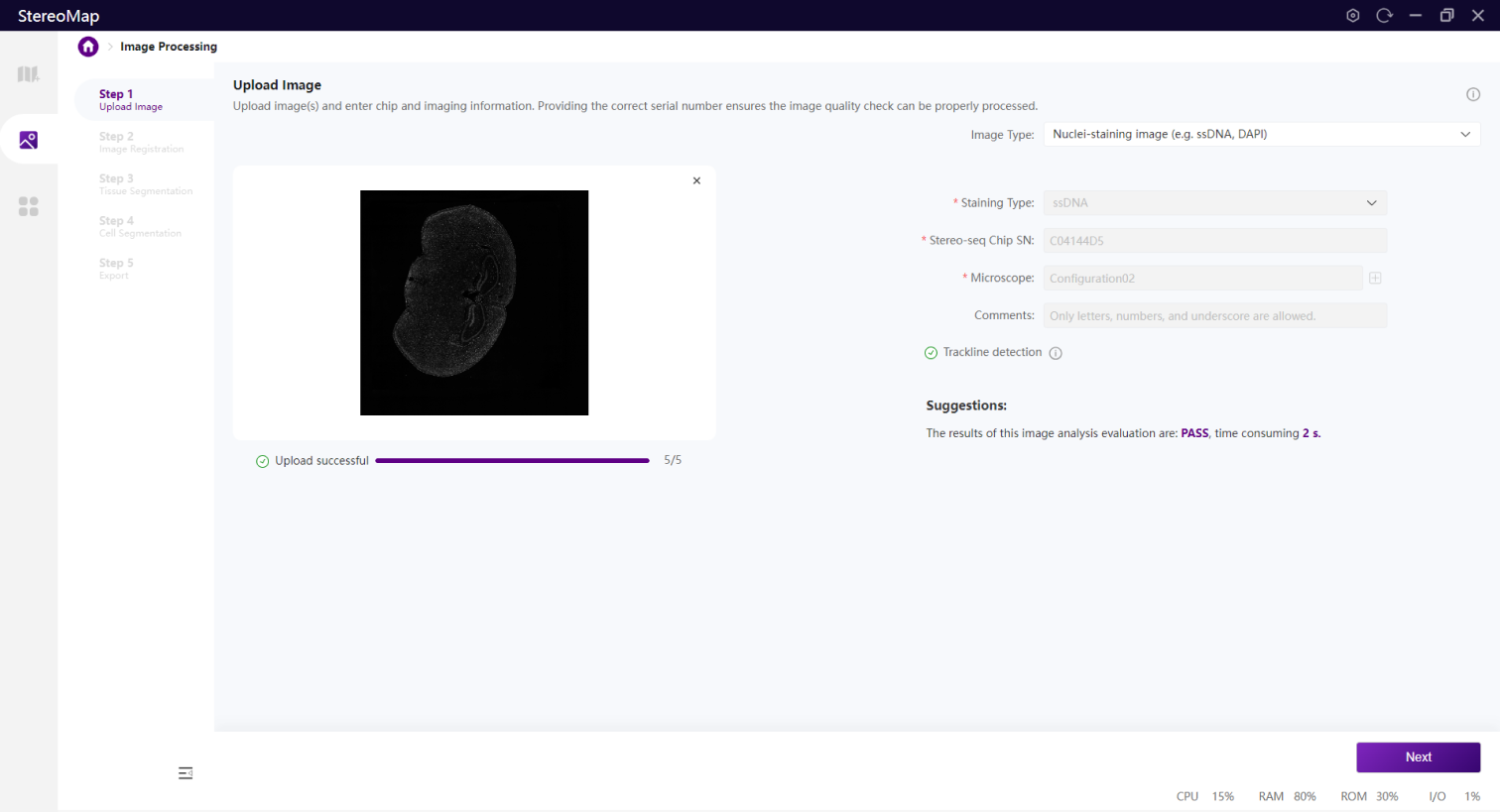
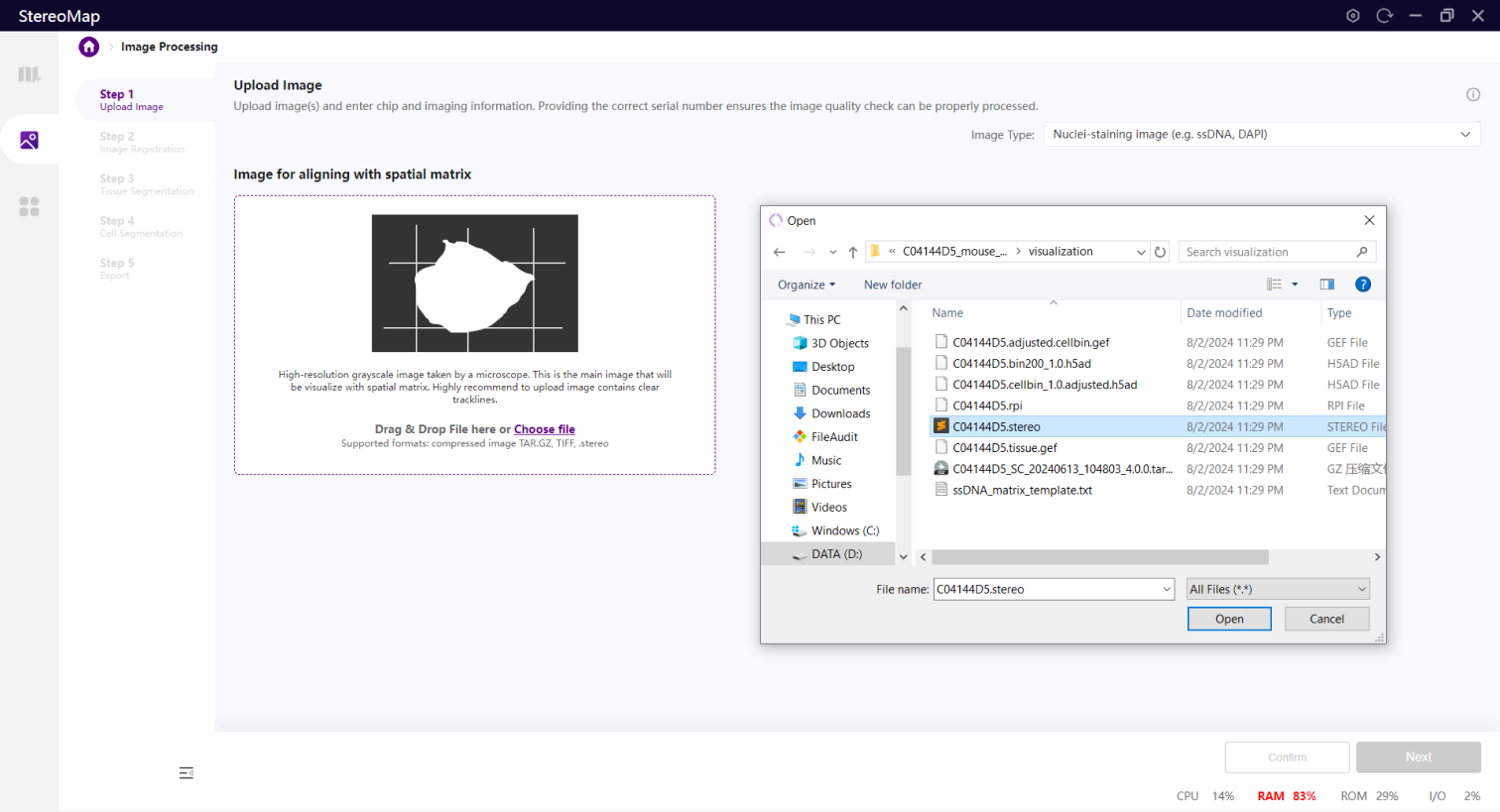
Click on **Choose file** in the drag-and-drop box to select a compatible image file from your file system. You can also drag your selected file and drop it in the box. Only one image file is allowed for this image type.

Please visit [Image Processing Input Files](/stereomap-user-manual-v4.1/getting-started.md#image-processing-input-files) for detailed image file information.

<figure><img src="/files/sDYNUH9bbGunnCJHBybA" alt=""><figcaption></figcaption></figure>

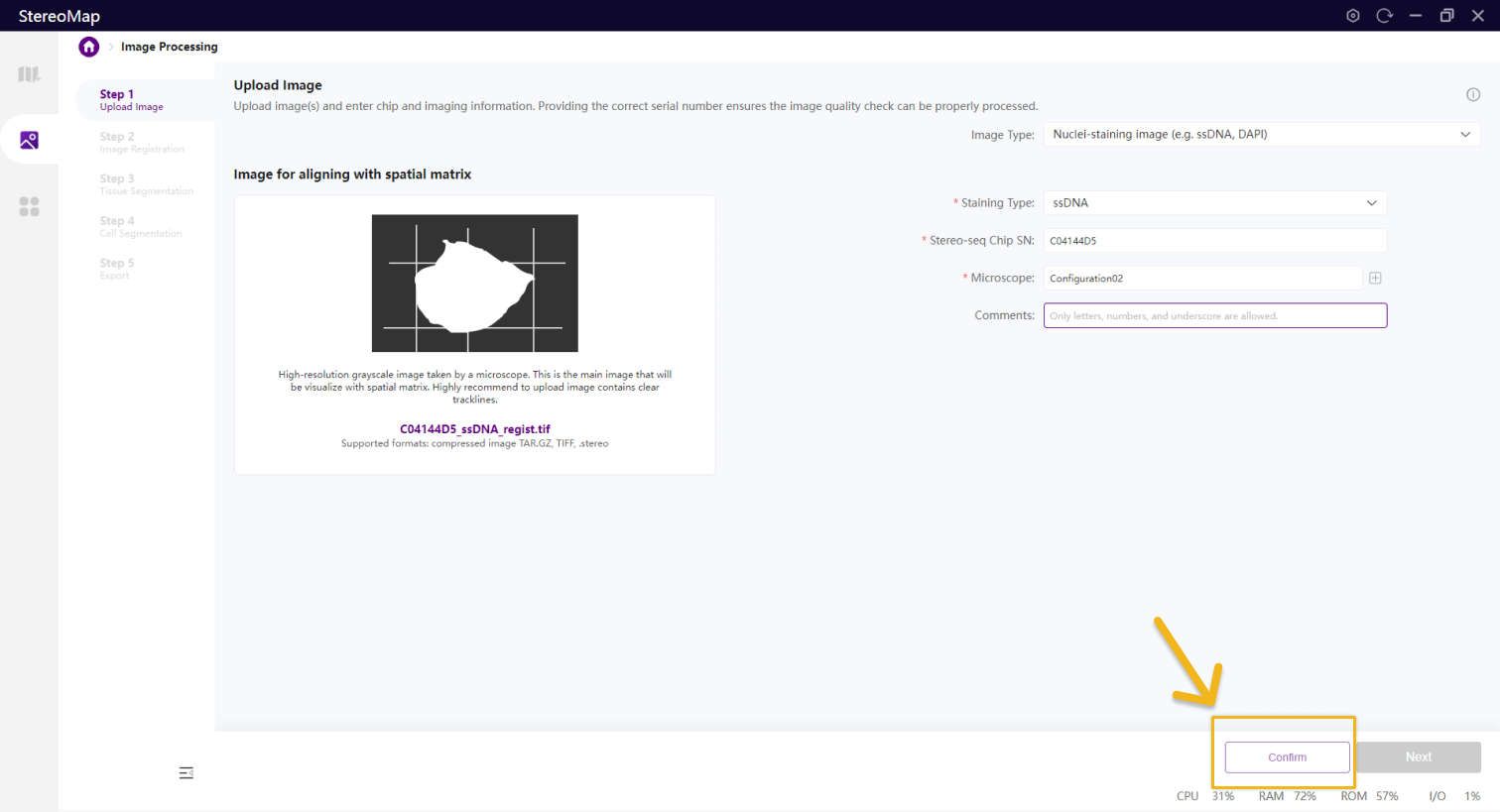
Selecting a file triggers a file-parsing process that not only reads the image but also acquires necessary data from the input. Depending on the file type and image size, the parsing time can vary. Stereo-seq chip serial number (SN) and microscope setting provide important information in the image processing steps. The `.tar.gz` or `.stereo` the input file contains these data, so the parsing process will start directly.

<figure><img src="/files/UqpUSSLMqs4mwe2y9JLh" alt=""><figcaption></figcaption></figure>

However, if the input file format is `.tif` or `.tiff`, you need to enter the required information specified in this step and click **Confirm** to begin the image parsing and quality check. Specifically, you’ll be asked to input details about the microscope by choosing a microscope configuration. Refer to the [Microscope Settings](/stereomap-user-manual-v4.1/download.md#microscope-settings) for additional details.

## Step 2: Image Registration

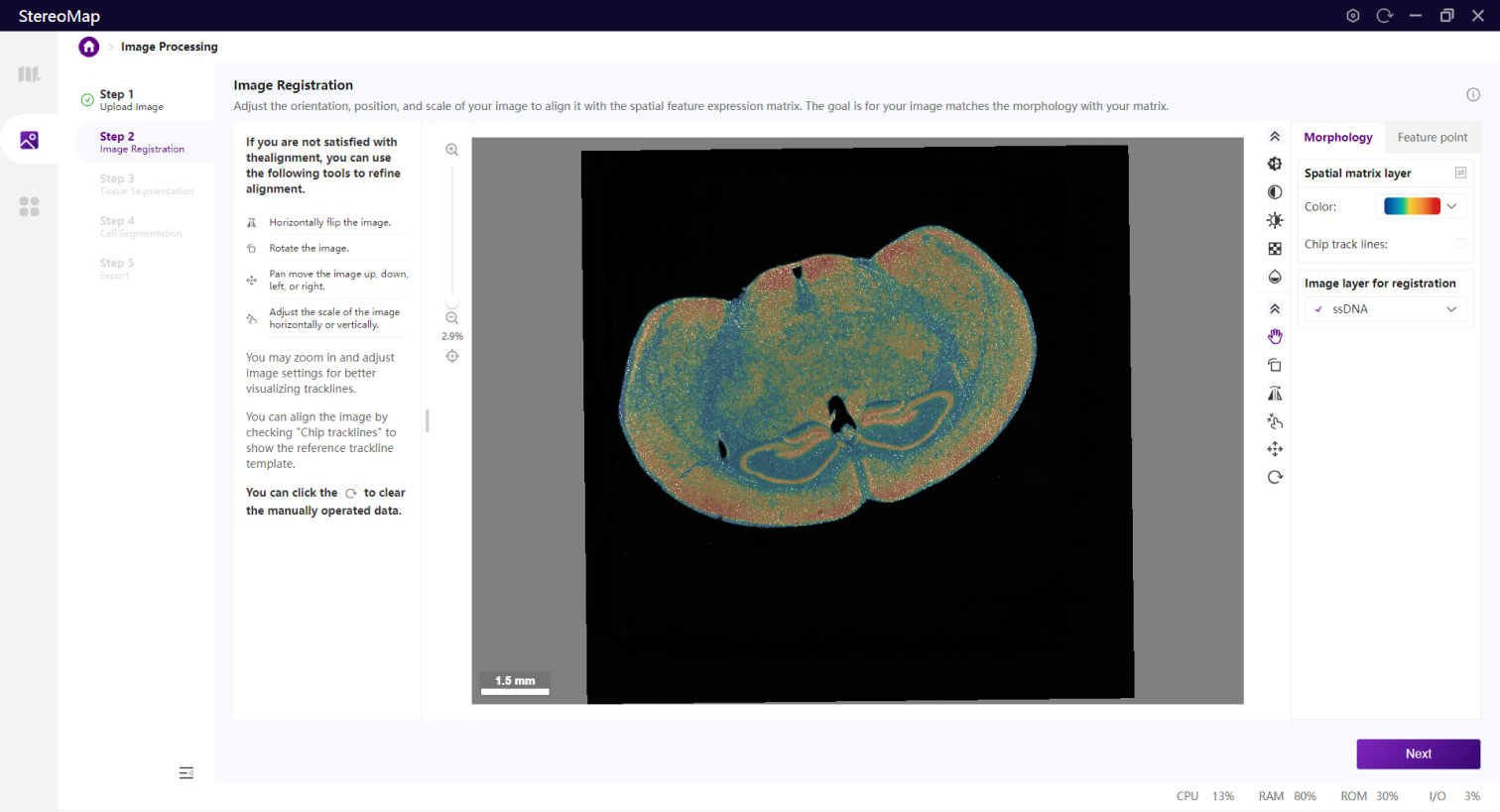
In this step, you will need to adjust the orientation, position, and scale of the image to align it with the spatial feature expression matrix. StereoMap provides two registration approaches for aligning images in the context of Stereo-seq data analysis.

1. [**Morphology Registration**](#morphology-registration): Aligns image with matrix based on the similarity of their morphology.
2. [**Feature Point Registration**](#feature-point-registration): Aligns image to the trackline template deduced from the Stereo-seq chip SN by marking a key point. There’s no need to bring in a spatial feature expression matrix generated by SAW, but some prerequisites should be taken into account.

<figure><img src="/files/wqsORbRlf3epqUeVCPm5" alt=""><figcaption></figcaption></figure>

### Morphology Registration

If you upload the `.stereo` file in step 1, you can see the image and the spatial feature expression matrix once enter step 2. For `.tar.gz` or `.tif/.tiff` image file, you will need to add a `.stereo` file for specifying a spatial feature expression matrix as the reference. Click <img src="/files/bwJx0rgIN3S6O2VJY77e" alt="" data-size="original"> to select the `.stereo` file. Also, if your image is in the `.stereo` file, but you want to change the reference expression matrix, you can click the <img src="/files/VfMxQKPVHatNLHpHiQPS" alt="" data-size="original"> and load a new file. This action will reload the matrix, but use the image from step 1.
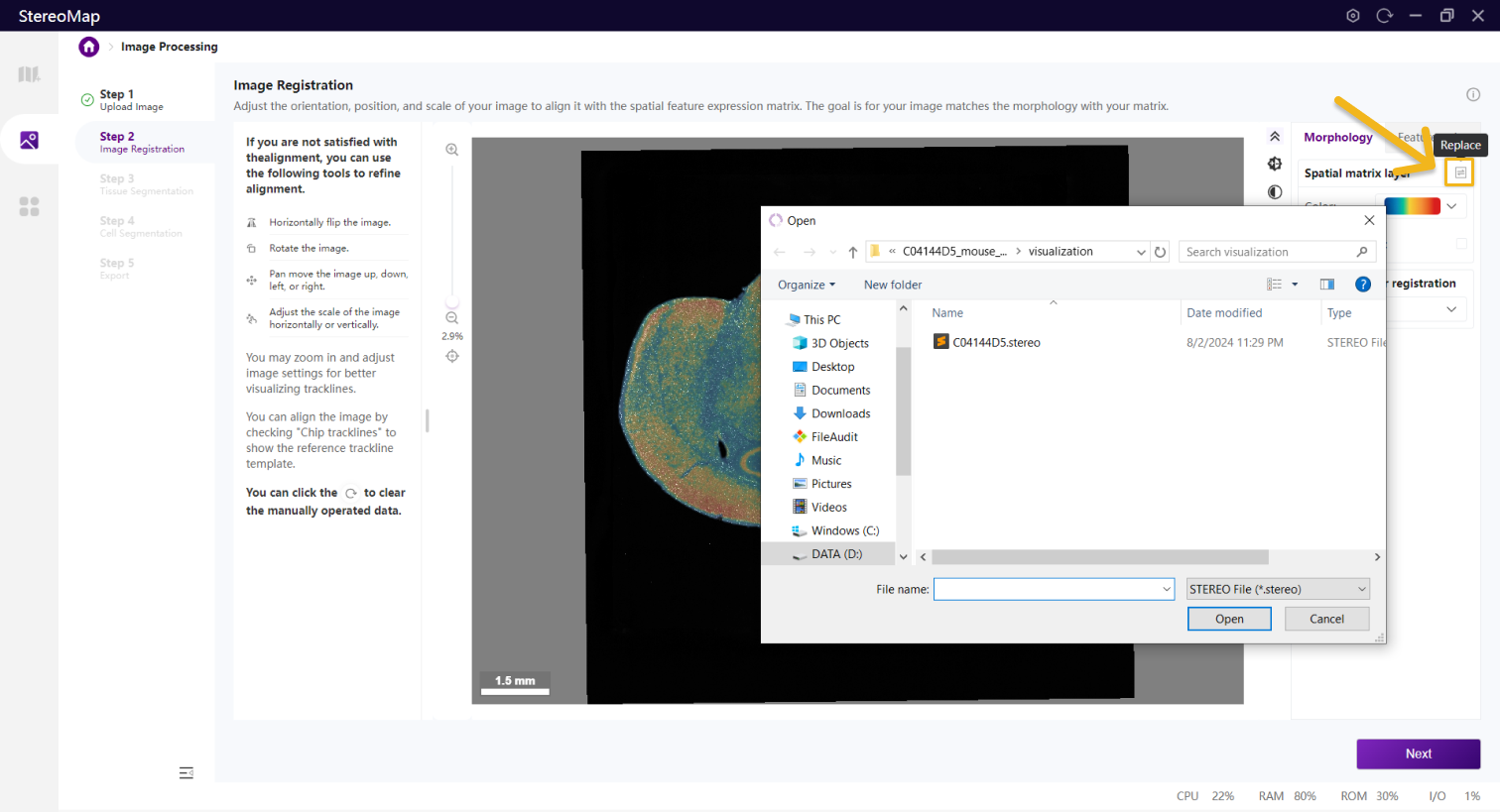
<figure><img src="/files/TauvzRJQjLYVWnGKbDTA" alt=""><figcaption></figcaption></figure>

The registration process involves two stages, roughly matching the orientation of the image based on the morphology and finely adjusting the position and scale for exact overlap with the spatial feature expression map. You can also choose "Chip tracklines" to display tracklines that are derived from the spatial feature expression matrix to help with fine alignment.

To roughly align the image, you need to match the microscope image and the feature density map in orientation.

* Use the **Flip tool** <img src="/files/lxVJhO3uEYPBozrmmXn1" alt="" data-size="original"> to mirror the image.
* Click on <img src="/files/6rXXAcv5QKEJuausrQUw" alt="" data-size="original"> and use the **Control knob** <img src="/files/kSLawpwgwIPA7lABqeca" alt="" data-size="original"> to rotate the image in the same direction.

Once the orientation of the image and the spatial feature expression matrix have matched, you can move on to the fine-alignment steps.

In the fine-alignment stage, you will need to move the image to the place where the tissue can overlap.

* Use the **Move panel** <img src="/files/Q5Bo3YWjBYLREjZH78Z3" alt="" data-size="original"> by setting the step size and pan move in four directions.
* The dimension of the microscope image might differ from the spatial feature expression map, you can adjust scales using **Scale tool**<img src="/files/T5ubIkrVJikGsXbFKQAK" alt="" data-size="original">.

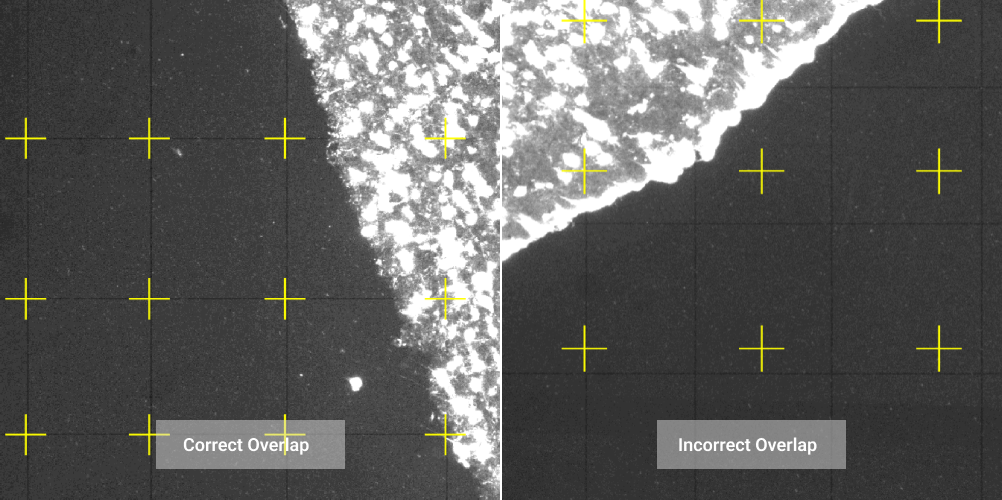
You can align the image by checking "Chip tracklines" to show the reference trackline template and let the tracklines fall directly overlapped. At this time, the chip trackline template is a representation of the matrix. If the tracklines are dim, the **Normalization** <img src="/files/l7WWZRqwPeMdyH9GvnbL" alt="" data-size="original"> , **Contrast** <img src="/files/Oyvy3ygDurEqYJZLHUdv" alt="" data-size="original">, **Brightness** <img src="/files/c0o375k3kHOYNIbtw6O9" alt="" data-size="original">, and **Opacity** <img src="/files/QkkIZuxC6c5e9DFggSJh" alt="" data-size="original"> of the image can be adjusted manually.
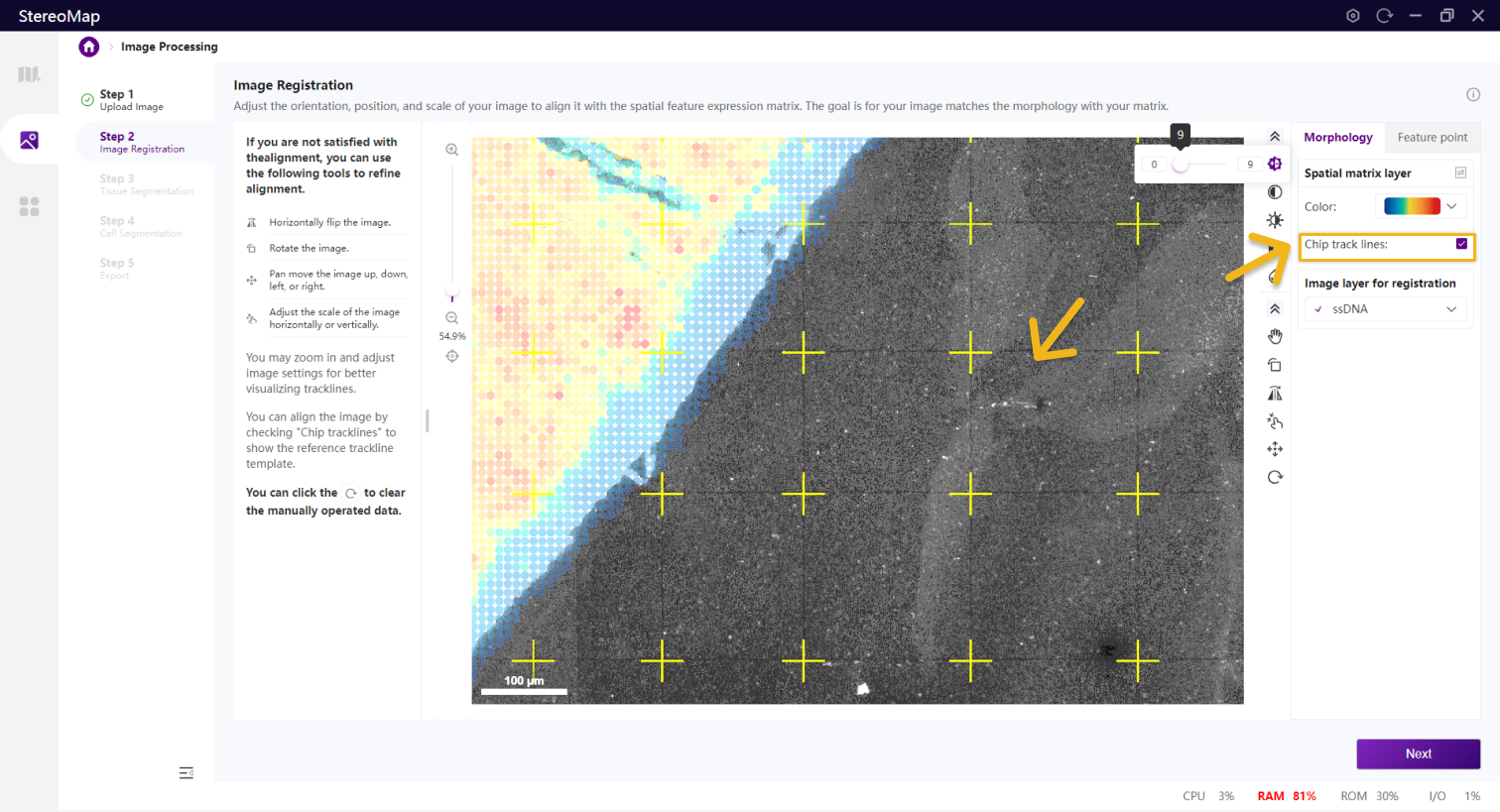
<figure><img src="/files/e7q7zflJpgetSYt2xXEh" alt=""><figcaption></figcaption></figure>

{% hint style="info" %}
The images are adjusted to optimize the visibility of tracklines.
{% endhint %}

<figure><img src="/files/SYCbigEhKVqR1Sx6qnd1" alt=""><figcaption><p>Example of trackline overlapping</p></figcaption></figure>

{% hint style="info" %}
Adjusting **Saturation** <img src="/files/AkVXeq0Q7FStY5iH4aFf" alt="" data-size="original"> will not affect the grayscale image.
{% endhint %}

The image that has been adjusted will be marked as complete by <img src="/files/ArZa9H6dnPLOrcKK5uzc" alt="" data-size="original">.

{% hint style="info" %}
After the image has been aligned with the matrix, steps 3 and 4 can be bypassed. You can export the semi-processed `.tar.gz` image directly and feed this output to SAW for automatic segmentation.

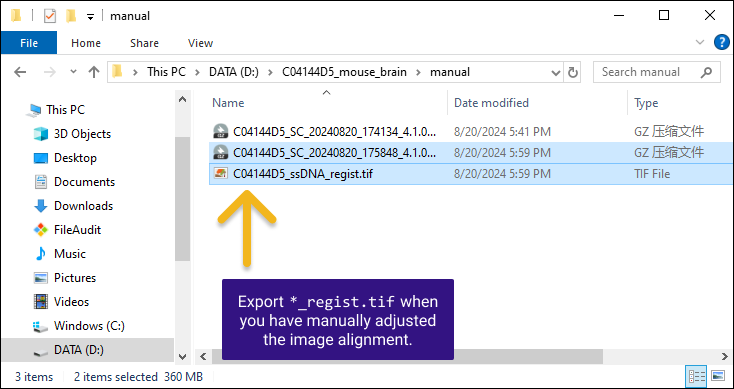
In addition, a `*regist.tif` image file will be provided. This is a reoriented image that matches the shape and orientation of its corresponding feature expression matrix. This image serves as the starting point for tissue and cell segmentation. **If you’re considering using other external segmentation tools or algorithms, it’s strongly advised to utilize this `*regist.tif` file as the input.**
{% endhint %}

### Feature Point Registration

Registration with feature points involves aligning images without the need for a feature expression matrix. It uses tracklines detected from the image and lines from the chip mask according to predefined rules.

{% hint style="info" %}
**Prerequisite to accessing this approach:**

1. Image must pass QC: this ensures the tracklines are visible.
2. Valid Stereo-seq chips that follow the predefined rules: Stereo-seq N FFPE V1.0, Stereo-seq T FF V1.3, or Stereo-CITE T V1.1 chips.
3. Input `.tar.gz` or the `.stereo` file correspondent `.tar.gz` is generated from StereoMap >= 4.1.
   {% endhint %}

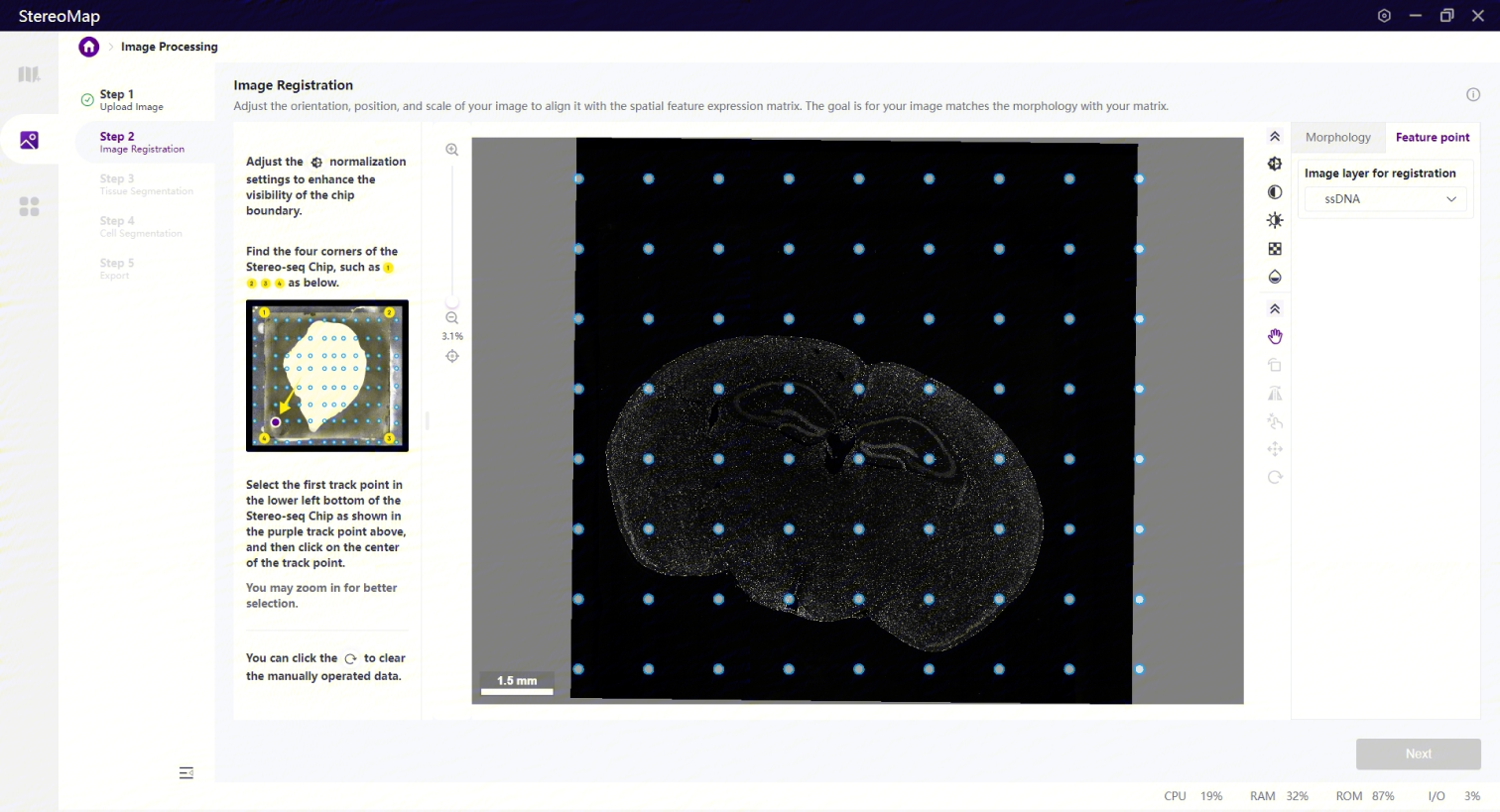
To ensure that the two sets of lines match, you must also identify a specific point to indicate the orientation of the image; otherwise, the auto-alignment may fail.

**Requirements to select the correct feature point and get the correct registration result:**

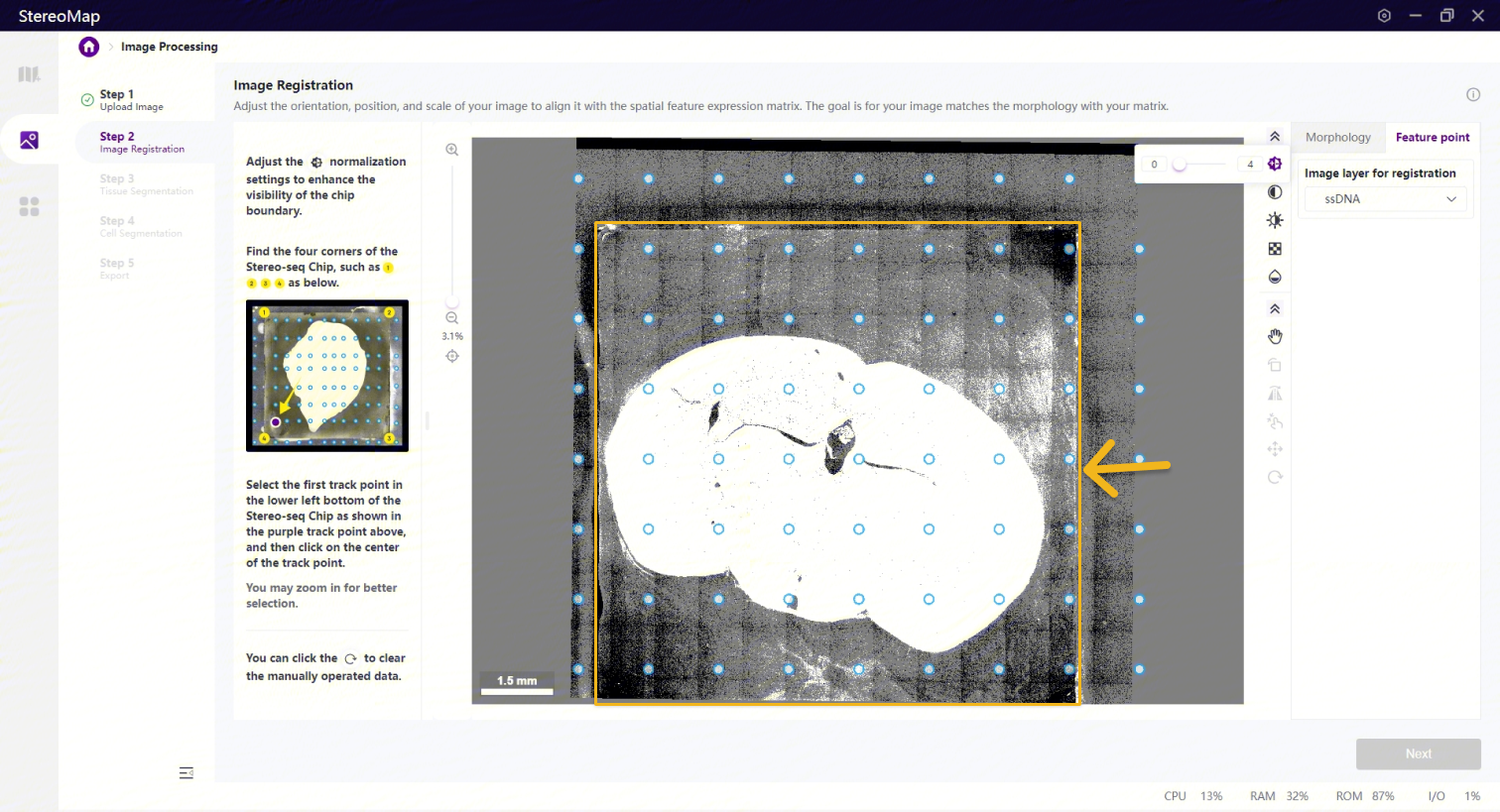
1. The four chip edges/corners can be seen from the image.
2. The imaging process has strictly followed the instructions specified in [**Microscope Assessment Guideline**](https://enfile.stomics.tech/STUM-PE001%20Microscope%20Assessment%20Guideline_ver%20C.pdf) **- Chapter 3 Microscope Imaging Guidelines - 3.2.2. Precautions for Experimental Operations**. You can access it from [STOmics](https://en.stomics.tech/) -> [Resources Documents](https://en.stomics.tech/resources/documents/list.html).

{% hint style="warning" %}
If your image cannot fulfill **all the requirements**, we highly recommend you perform the [**Morphology Registration**](#morphology-registration).
{% endhint %}
<figure><img src="/files/19X6LPQHvF1ue2qjXJ7j" alt=""><figcaption></figcaption></figure>

{% hint style="info" %}
Feature point registration begins with an image that has been adjusted for rotation and scaling.
{% endhint %}

The process of feature point registration involves two stages: adjusting the image to ensure the chip's four edges/corners are visible, and selecting a point from a predefined set to serve as the reference location.

<figure><img src="/files/yNttEoLch7Sa4WxxKS1o" alt=""><figcaption></figcaption></figure>

To ensure all four sides of the chip are visible, you can manually adjust the image's **Normalization** <img src="/files/l7WWZRqwPeMdyH9GvnbL" alt="" data-size="original"> , **Contrast** <img src="/files/Oyvy3ygDurEqYJZLHUdv" alt="" data-size="original">, **Brightness** <img src="/files/c0o375k3kHOYNIbtw6O9" alt="" data-size="original">, and **Opacity** <img src="/files/QkkIZuxC6c5e9DFggSJh" alt="" data-size="original">.

<figure><img src="/files/00xWGLa6r3rRlnwVVI82" alt=""><figcaption></figcaption></figure>

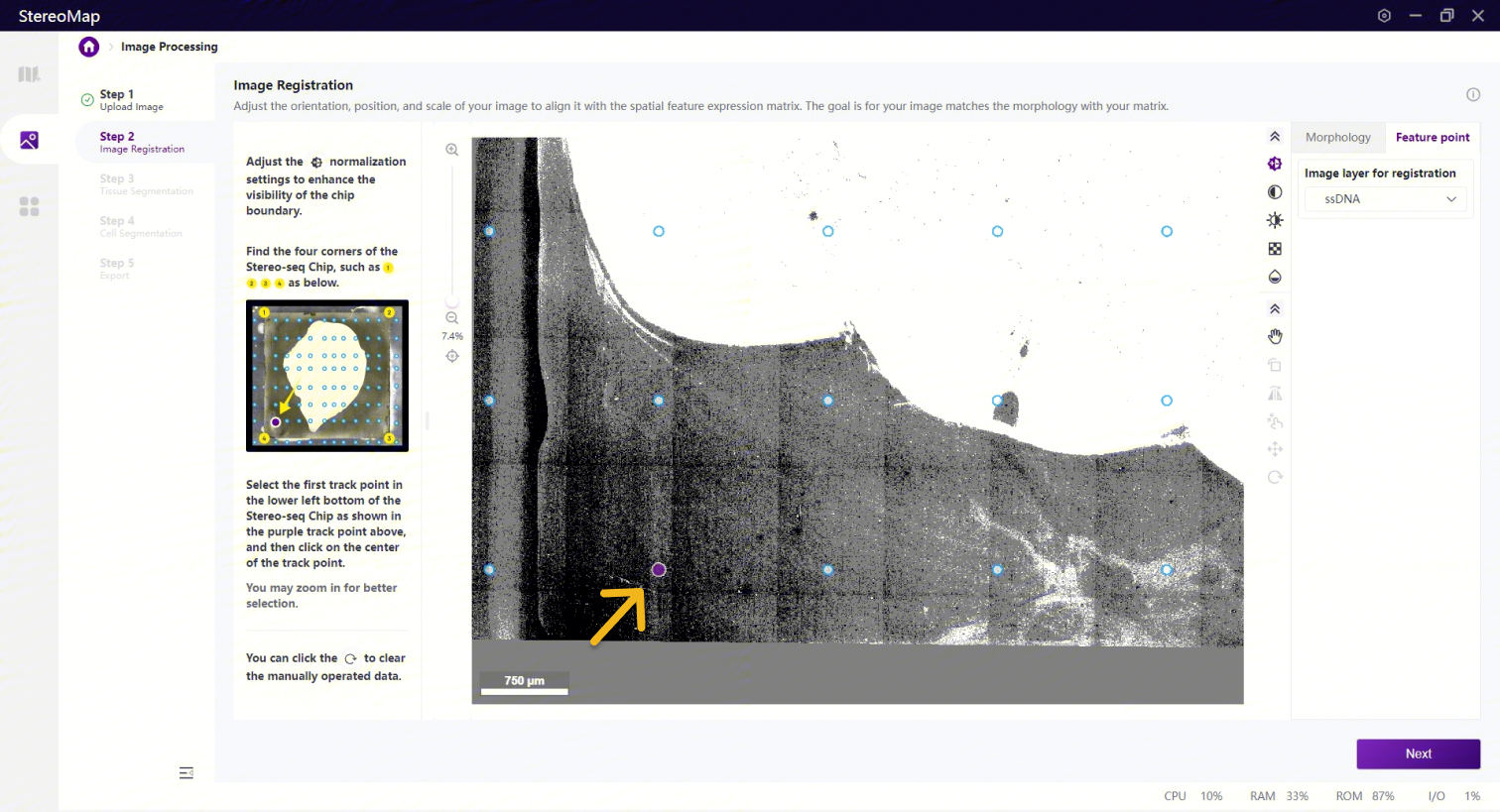
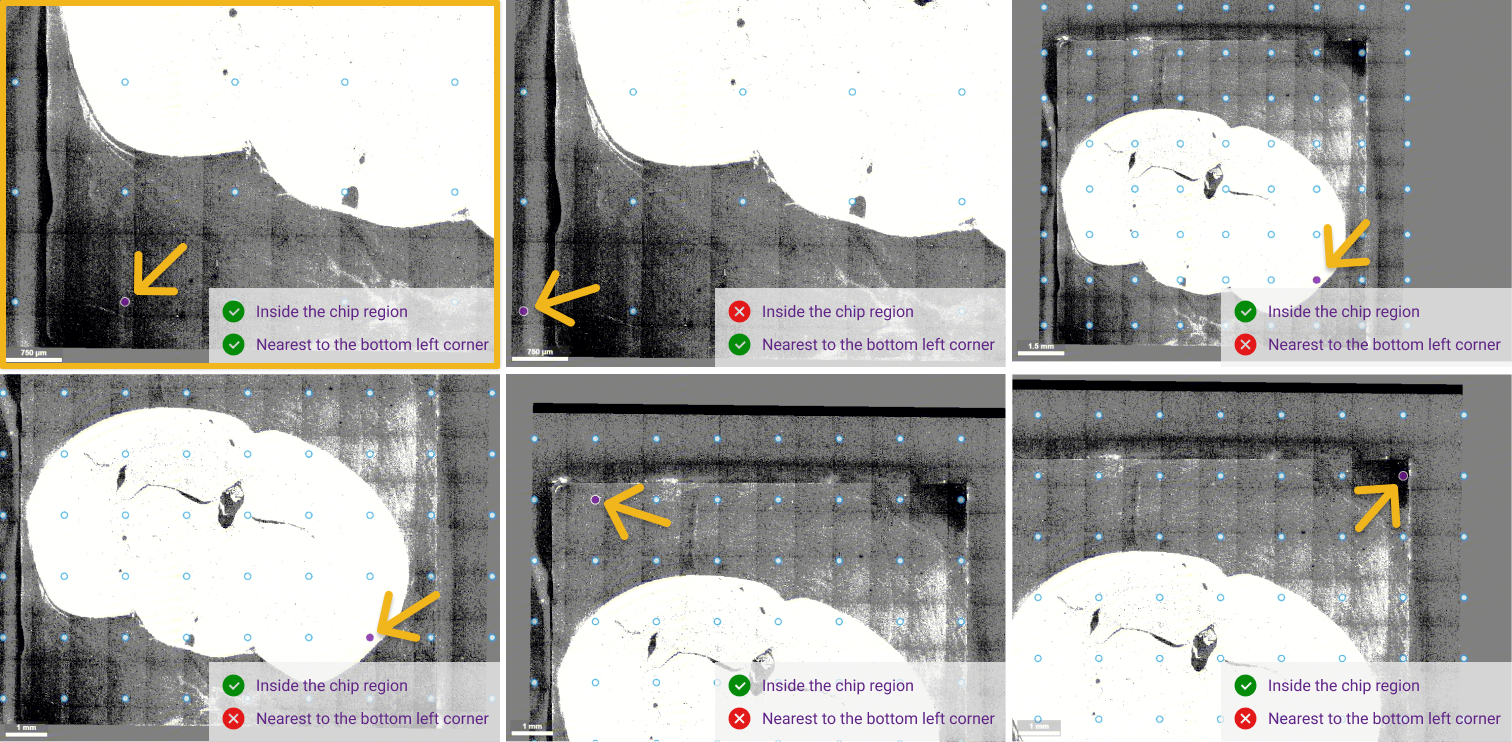
Once you can see the chip, you should identify a predetermined point **inside the chip region that is nearest to the bottom left corner**. Click on this point to select it, and then click **Next** to complete the registration.

<figure><img src="/files/N5rNwmxD6okWbPaFIkIJ" alt=""><figcaption></figcaption></figure>

After selection, the orientation of the image will be auto-adjusted. You will see the result in [Step 3: Tissue Segmentation](#step-3-tissue-segmentation).

{% hint style="info" %}
After the image has been aligned with the matrix, steps 3 and 4 can be bypassed. You can export the semi-processed `.tar.gz` image directly and feed this output to SAW for automatic segmentation.

In addition, a `*regist.tif` image file will be provided. This is a reoriented image that matches the shape and orientation of its corresponding feature expression matrix. This image serves as the starting point for tissue and cell segmentation. **If you’re considering using other external segmentation tools or algorithms, it’s strongly advised to utilize this `*regist.tif` file as the input.** Other`.tif` file may fail to import due to the difference in image and matrix size.
{% endhint %}

## Step 3: Tissue Segmentation

{% hint style="info" %}
**Tissue Segmentation** is a skippable step.
{% endhint %}

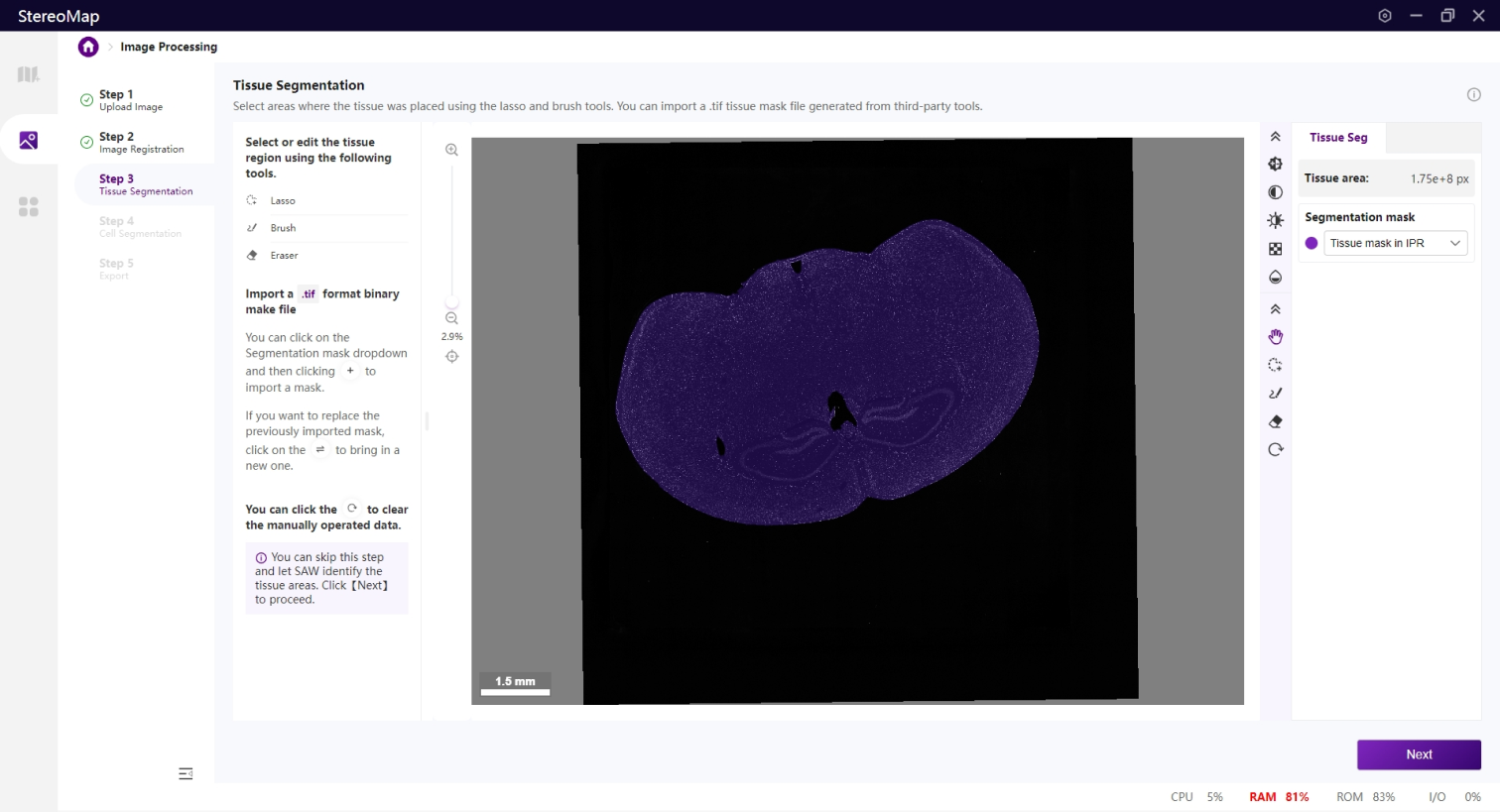
In this step, you will identify the tissue regions. Accurately identifying the boundaries of the tissue can significantly reduce the interference from the background in the clustering result. The image-based tissue segmentation result will be mapped onto the sequencing-based spatial feature expression matrix to create a feature density map of the tissue region.

<figure><img src="/files/XU9R13tzQ6eN1lppOzTH" alt=""><figcaption></figcaption></figure>

{% hint style="info" %}
If you upload the `.stereo` file in step 1, you can see a semi-transparent mask overlapped on the registered microscope image.

For `.tar.gz` or `.tif/.tiff` image file, you will need to use tools to draw the tissue region.
{% endhint %}

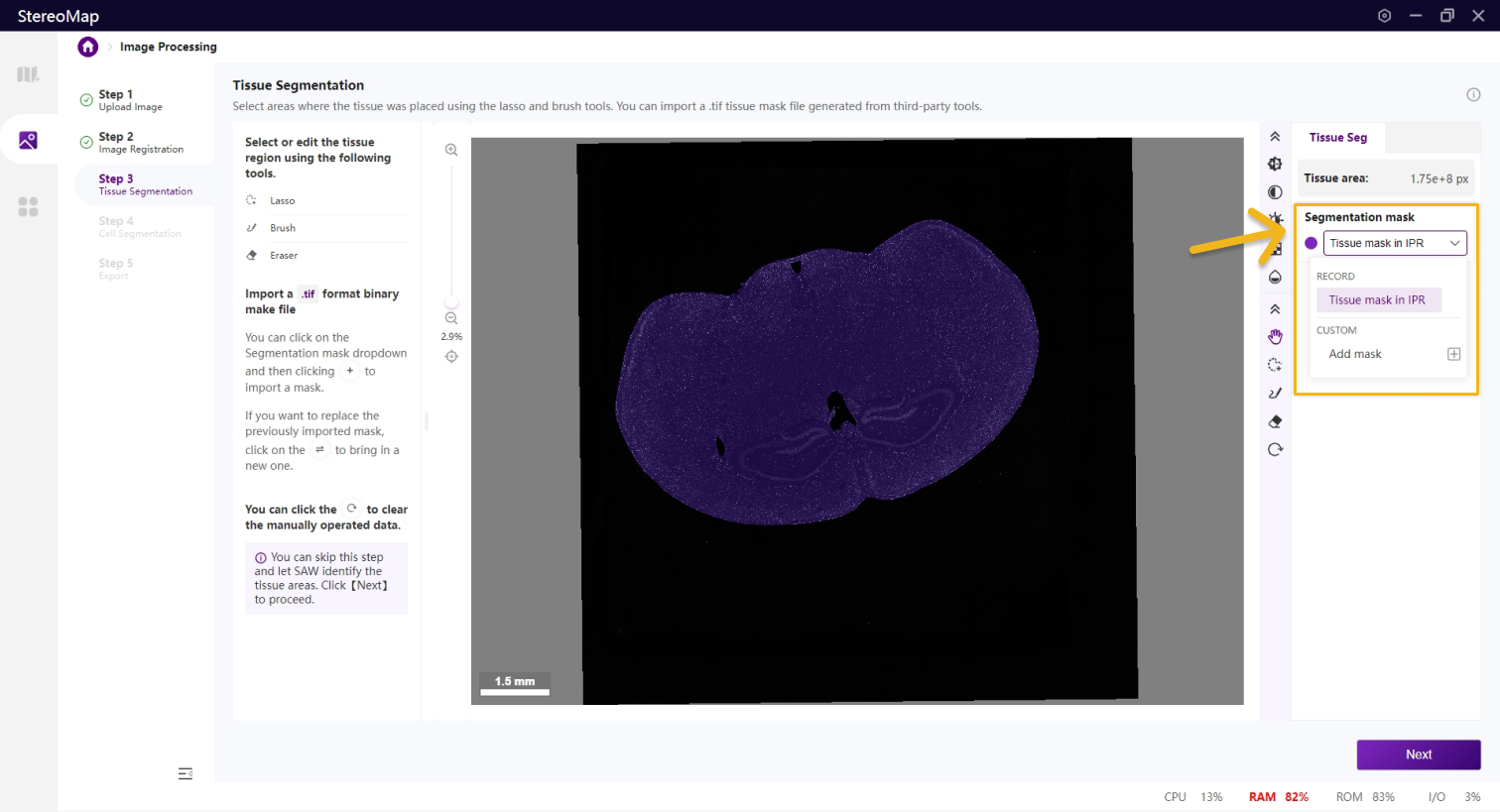
In the Tissue Segmentation step, you have the option to edit the mask that was previously recorded or create a new one. The tissue mask that was recorded in the `.tar.gz` or `.stereo` the file will be labeled as "**RECORD**" in the Segmentation mask dropdown menu, while the mask created by drawing or importing will be labeled as "**CUSTOM**". To change the active image displayed in the canvas, simply select from the **Segmentation mask** dropdown.

<figure><img src="/files/kHPOacKDEn2yUipHowp0" alt=""><figcaption></figcaption></figure>

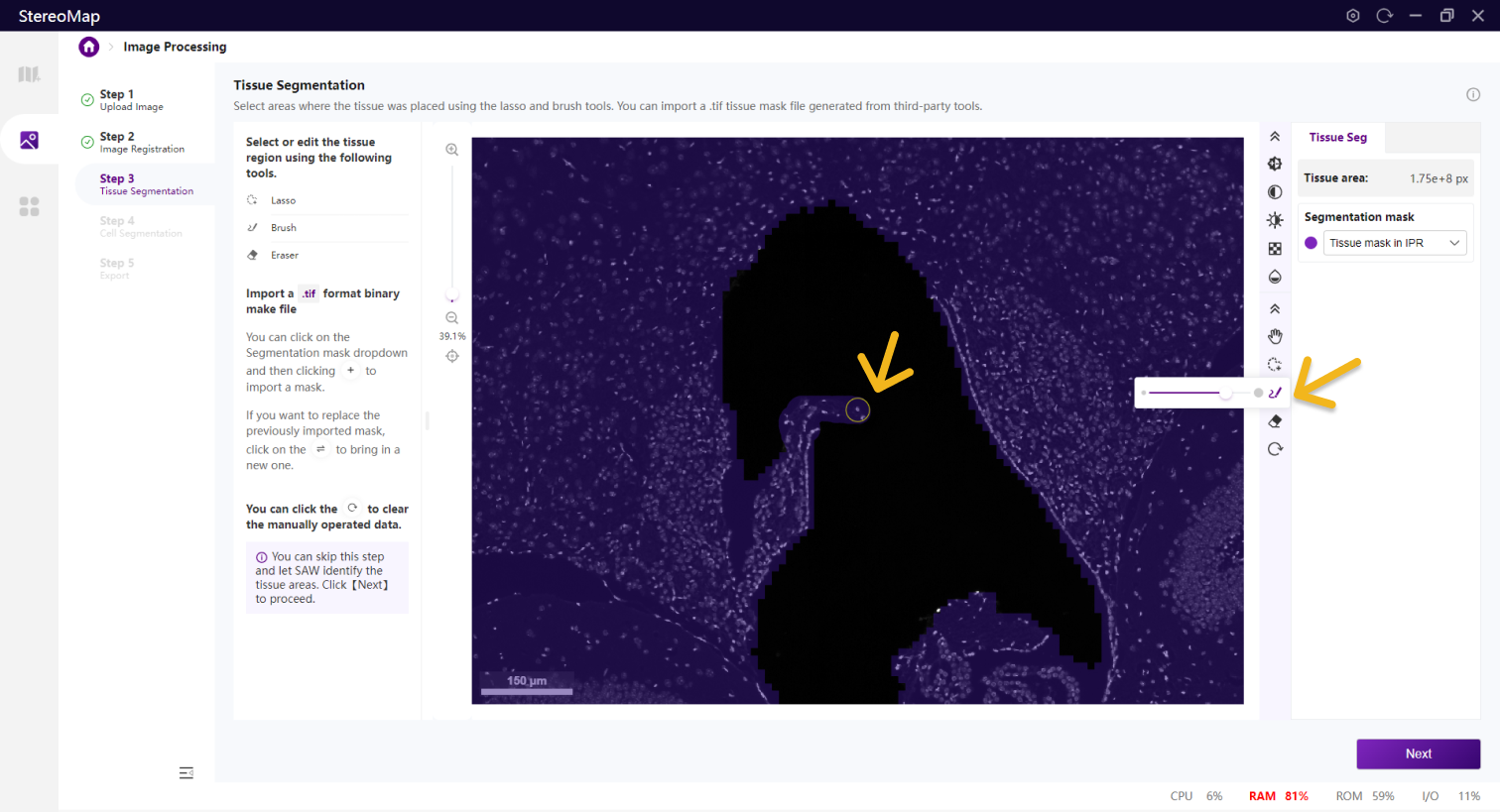
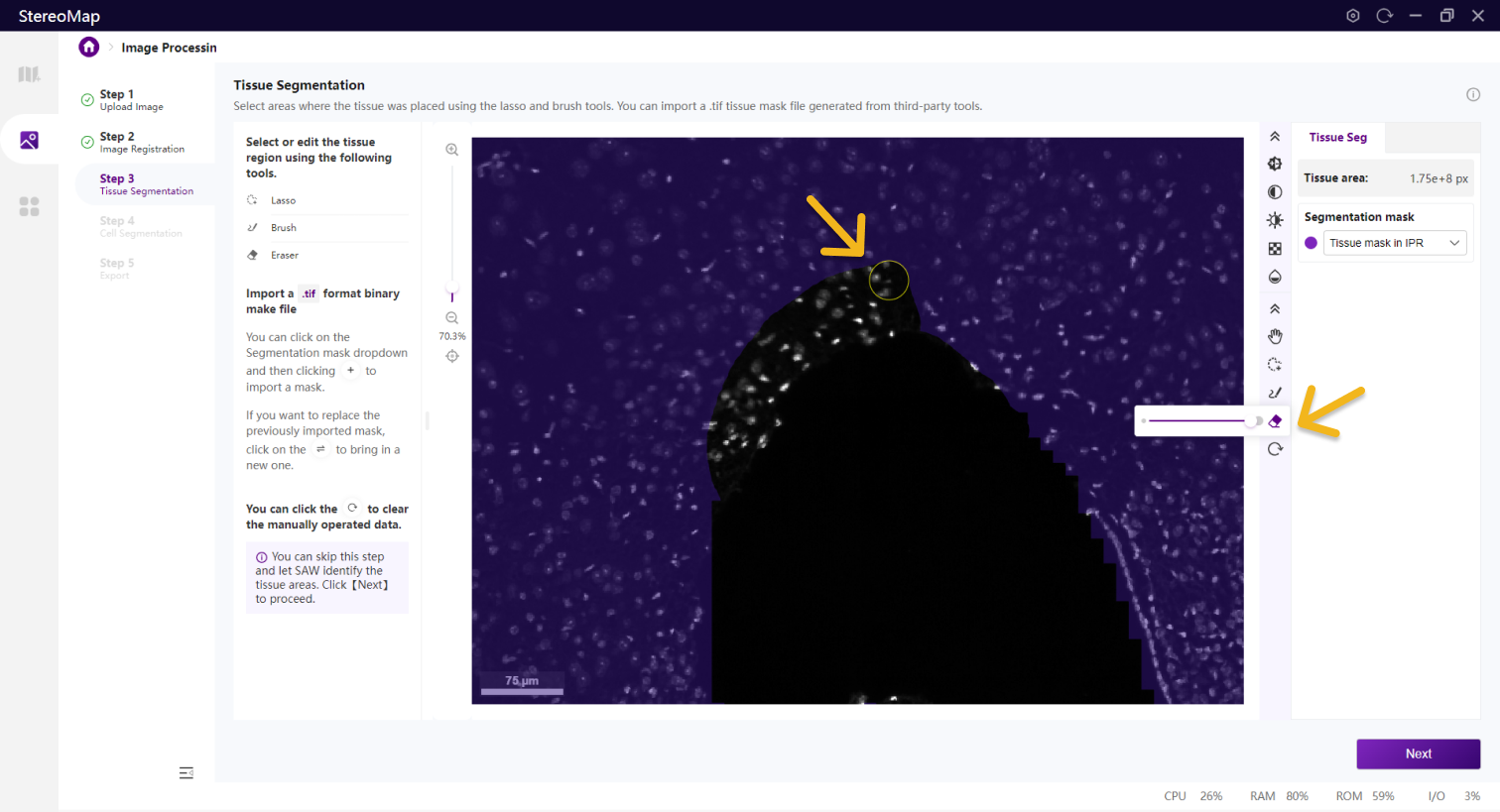
To select or edit the tissue region, use a combination of **Lasso** <img src="/files/XneuB0sqcRQ9IrN1RIcK" alt="" data-size="original">, **Brush** <img src="/files/xupjaBYFS02SkFFUymMI" alt="" data-size="original"> , and **Eraser** <img src="/files/HJfFirxVfmaaZNFrJWYO" alt="" data-size="original"> tools. **Lasso** is typically used for selecting or deselecting large areas, while the **Brush** and **Eraser** tools are more suitable for smaller areas, such as regions around tissue or small holes in the tissue.
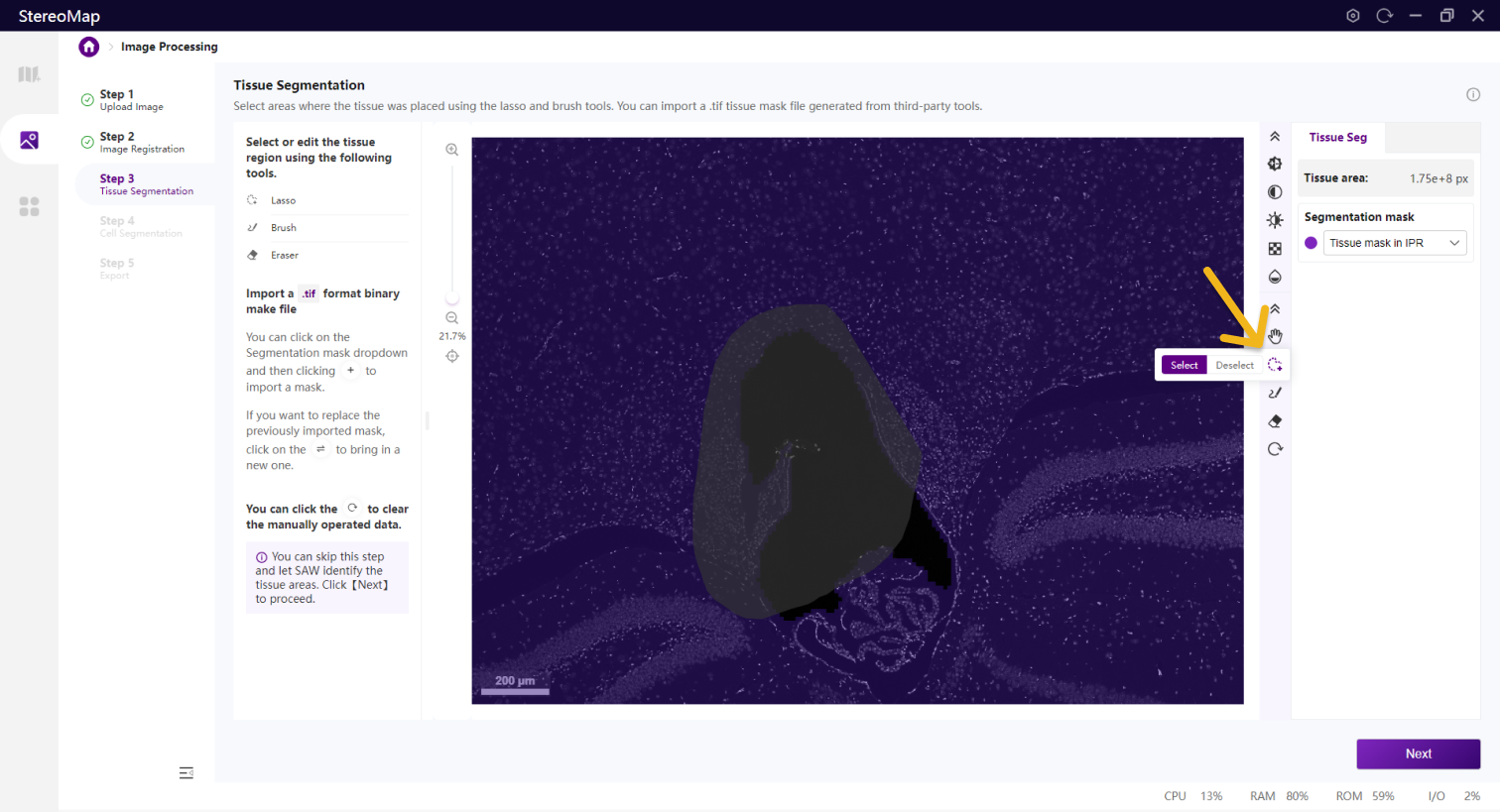
<div><figure><img src="/files/K2Fngt65dQv9bRAXqZG9" alt=""><figcaption><p>Lasso</p></figcaption></figure> <figure><img src="/files/YuYbMXUy1oLNfhujyNvC" alt=""><figcaption><p>Brush</p></figcaption></figure> <figure><img src="/files/r1IdoqjGg1izosg4ScTa" alt=""><figcaption><p>Eraser</p></figcaption></figure></div>

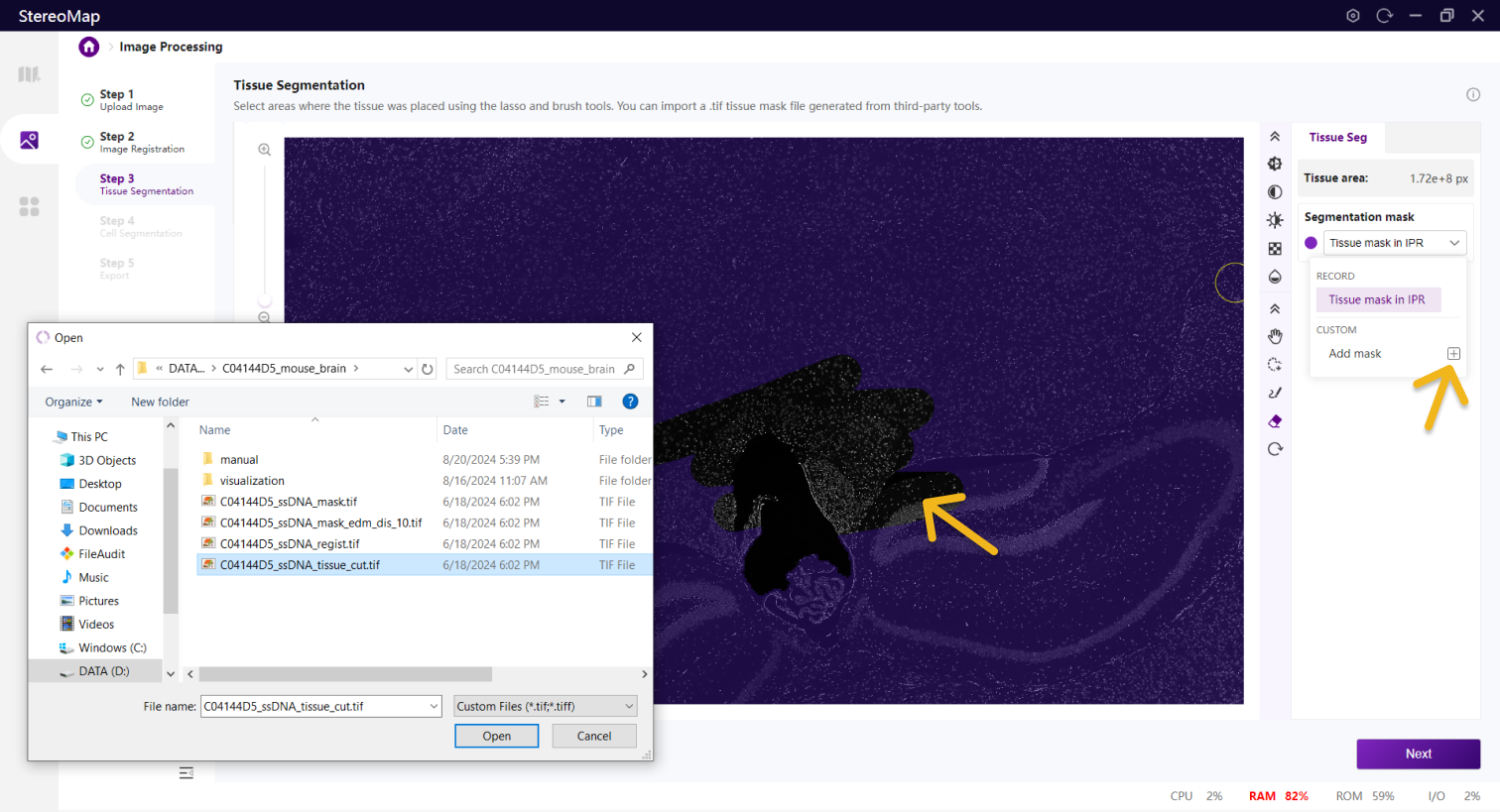
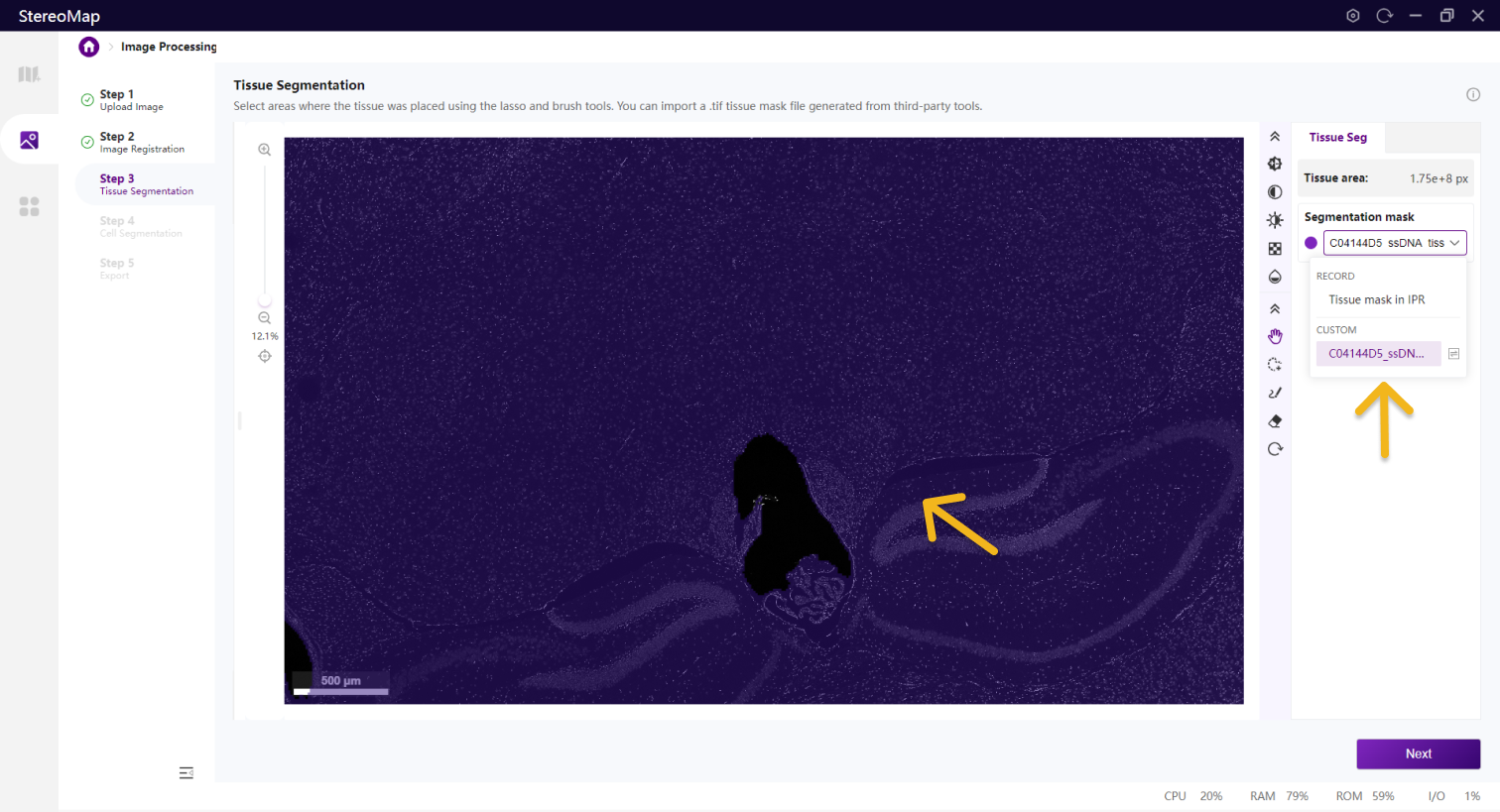
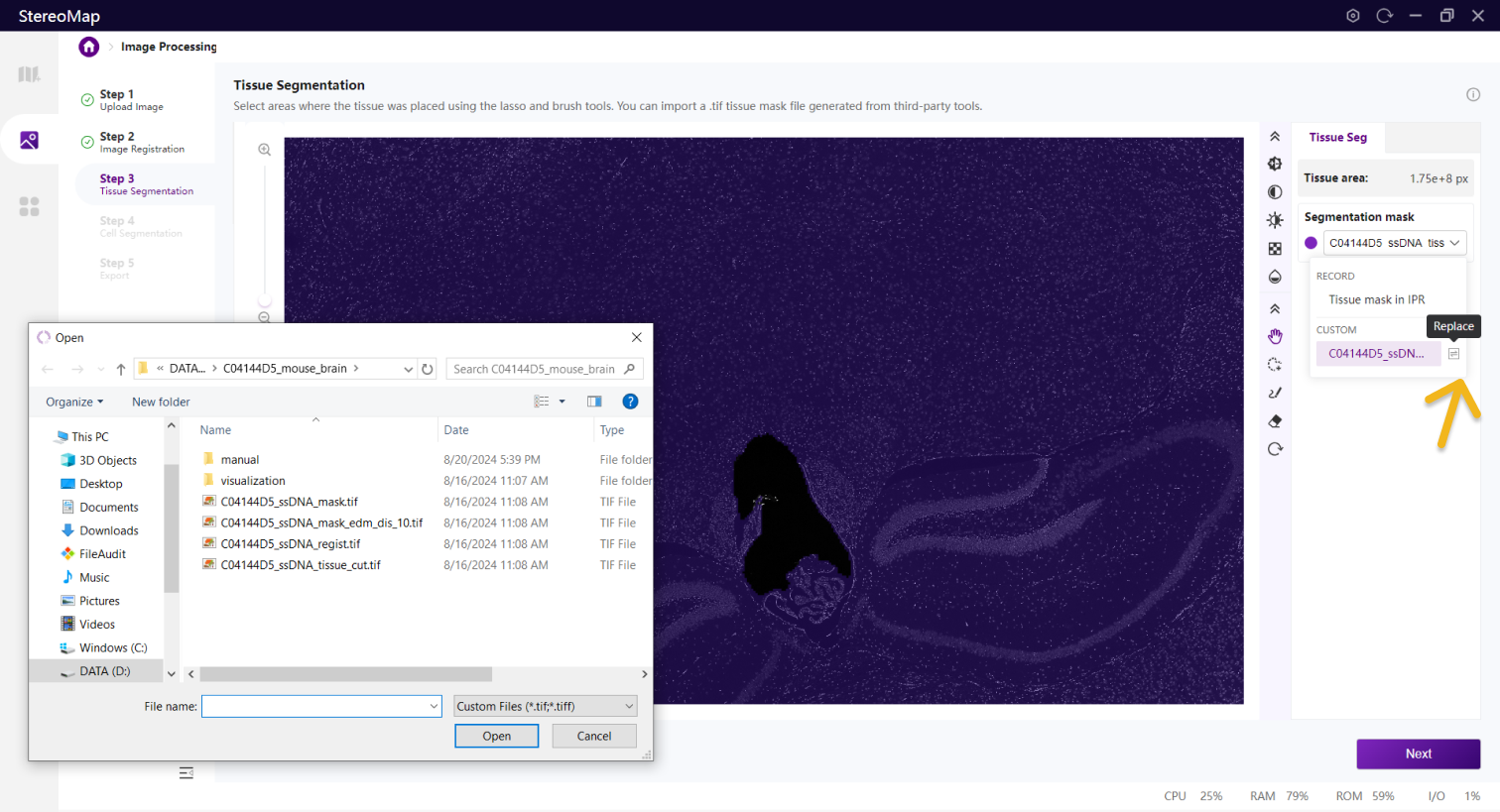
If you have created a `.tif` format binary mask file using a third-party tool, you can import it by clicking on the **Segmentation mask** dropdown on the right panel and then clicking <img src="/files/bwJx0rgIN3S6O2VJY77e" alt="" data-size="original">. If the imported result is unsatisfactory, you can replace it by clicking <img src="/files/VfMxQKPVHatNLHpHiQPS" alt="" data-size="original"> to import a new mask.

<div><figure><img src="/files/5PQdCQpvJoPcXVNWvAsQ" alt=""><figcaption><p>Import tissue mask</p></figcaption></figure> <figure><img src="/files/KrOo4z0dd6fog7NIHE3n" alt=""><figcaption><p>Show the file name of the imported mask</p></figcaption></figure> <figure><img src="/files/NMTaHlJiuHp5Weg95FR7" alt=""><figcaption><p>Replace the mask</p></figcaption></figure></div>

## Step 4: Cell Segmentation

{% hint style="info" %}
**Cell Segmentation** is a skippable step.
{% endhint %}

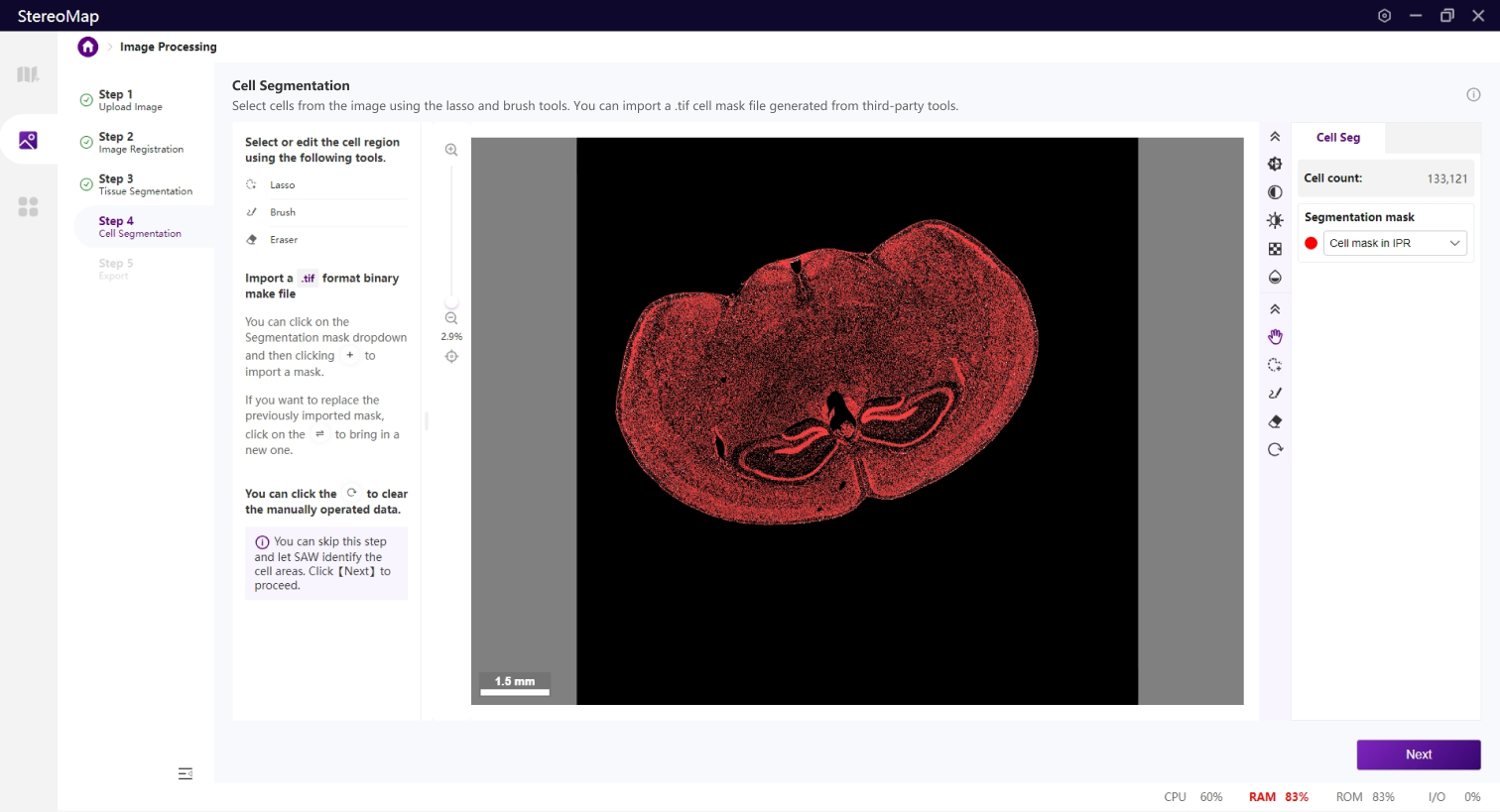
Cell identification and segmentation are the core steps in generating single-cell spatial resolved feature expression data.

<figure><img src="/files/jMHZ1SlCHANx3JJ3FdjY" alt=""><figcaption></figcaption></figure>

{% hint style="info" %}
If you upload the `.stereo` file in step 1, you can see the red outlines of the cells/nuclei on the registered microscope image.

For `.tar.gz` or `.tif/.tiff` image file, you will need to use tools to label cells.

Cell segmentation is applicable only within the tissue region. Therefore, the areas not encompassed in the Step 3 Tissue Segmentation will appear as a black background.

<img src="/files/A4v3NJ8PLnWKOGo5k4MQ" alt="" data-size="original">
{% endhint %}

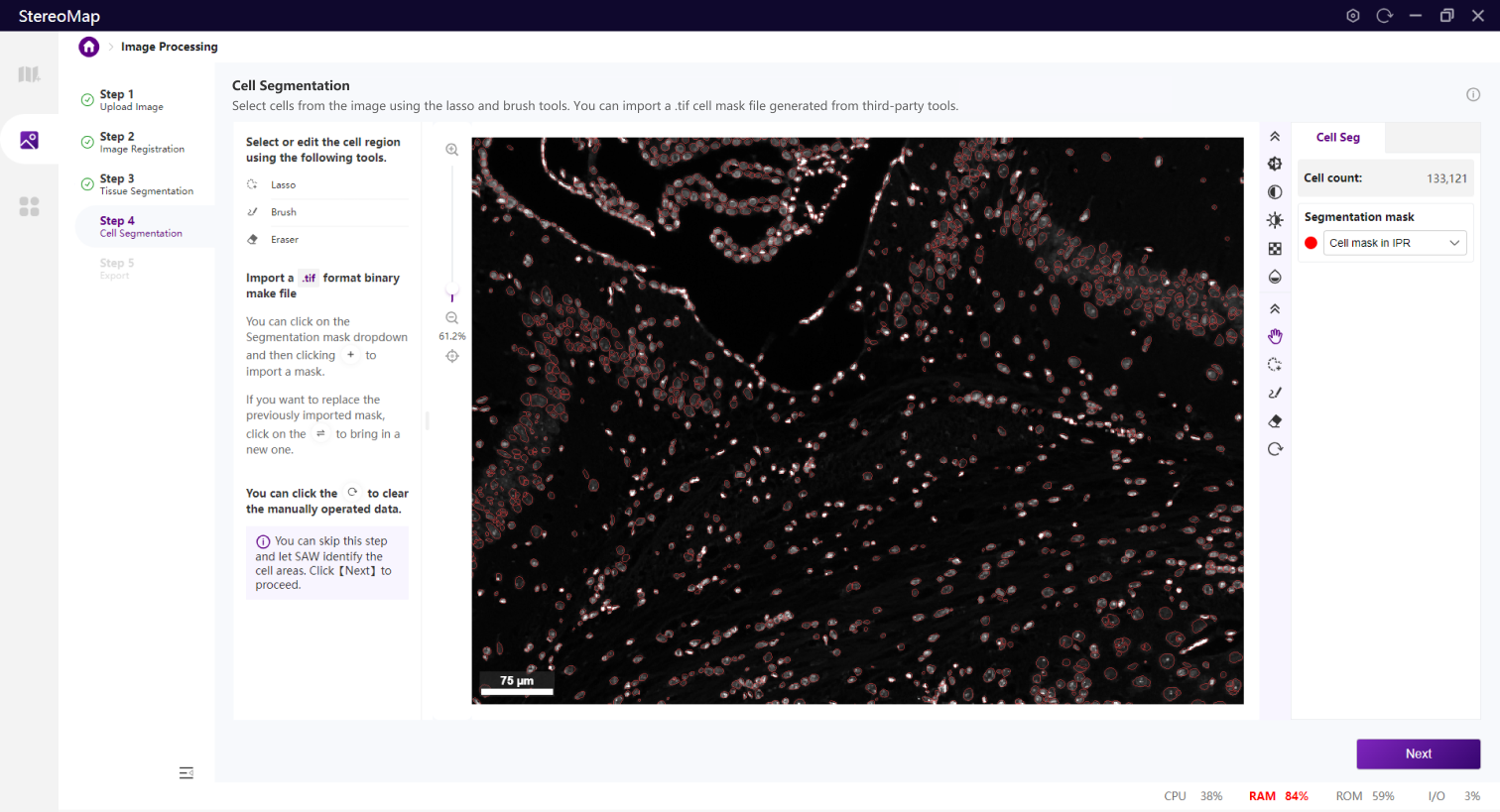
Similar to Tissue Segmentation, you have the option to edit the mask that was previously recorded (tagged with "**RECORD**") or create a new one (tagged with "**CUSTOM**"). Change the active mask by selecting from the **Segmentation mask** dropdown.
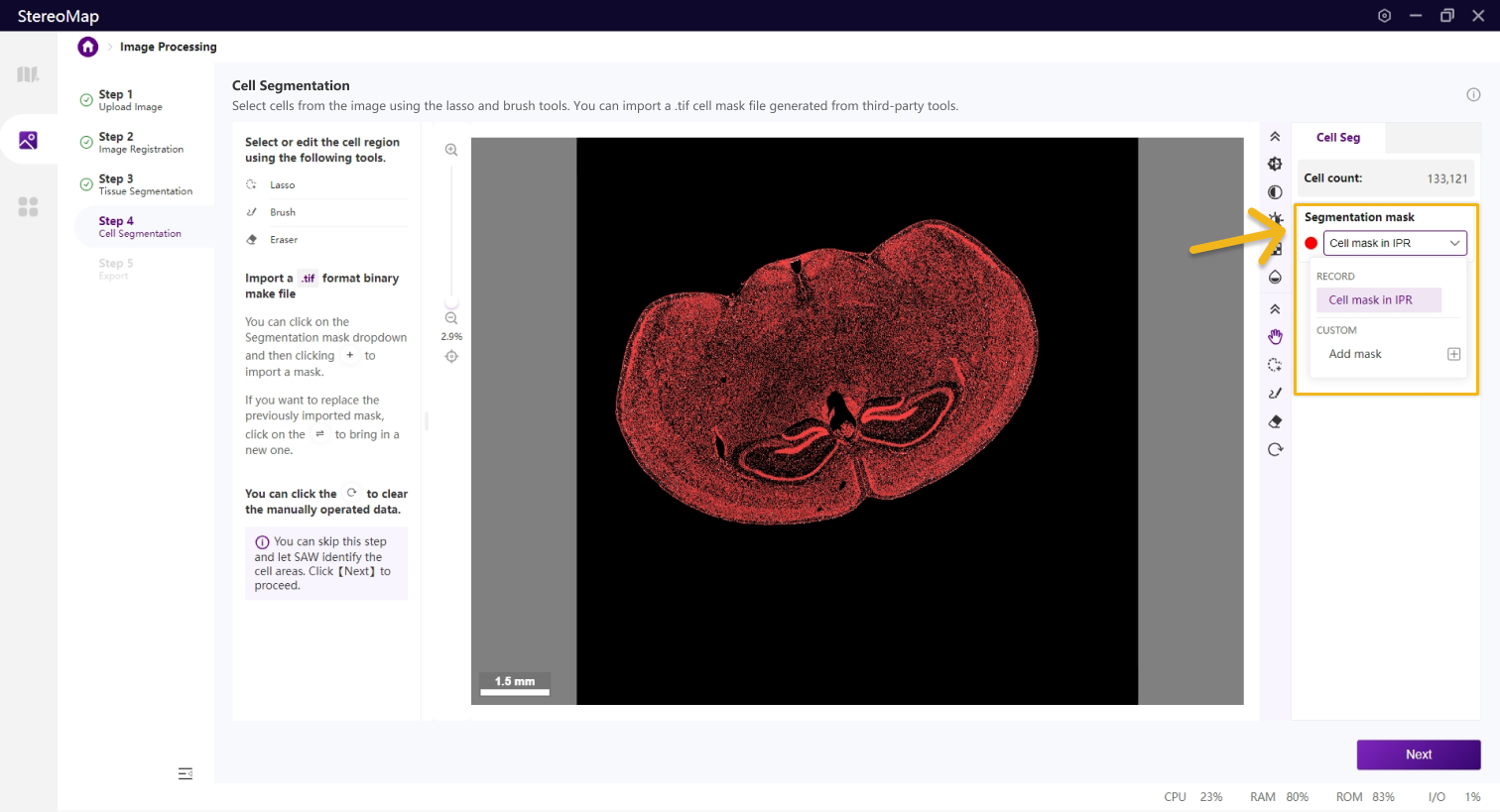
<figure><img src="/files/rucJfo8e6d2qHqQdAU4y" alt=""><figcaption></figcaption></figure>

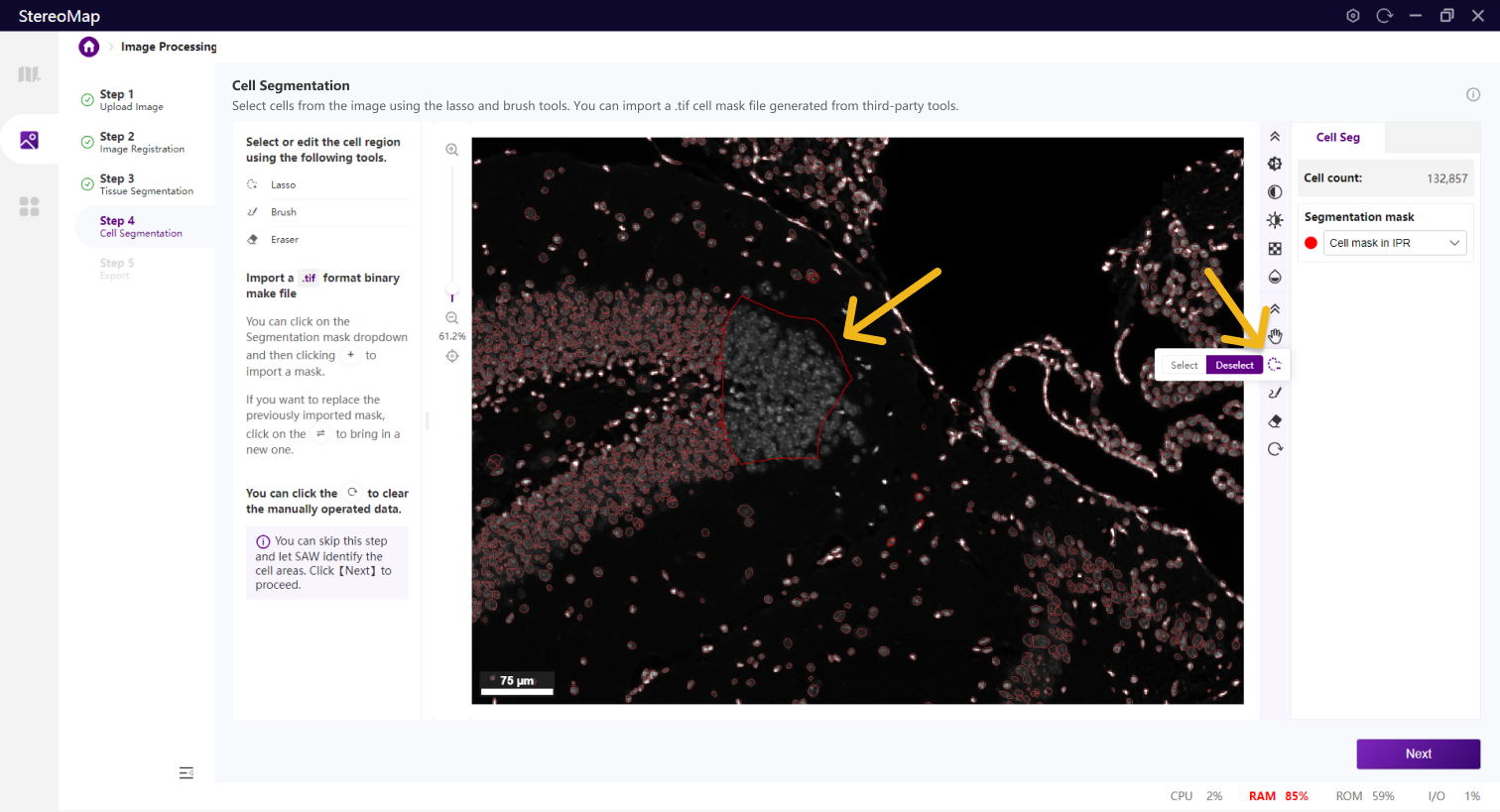
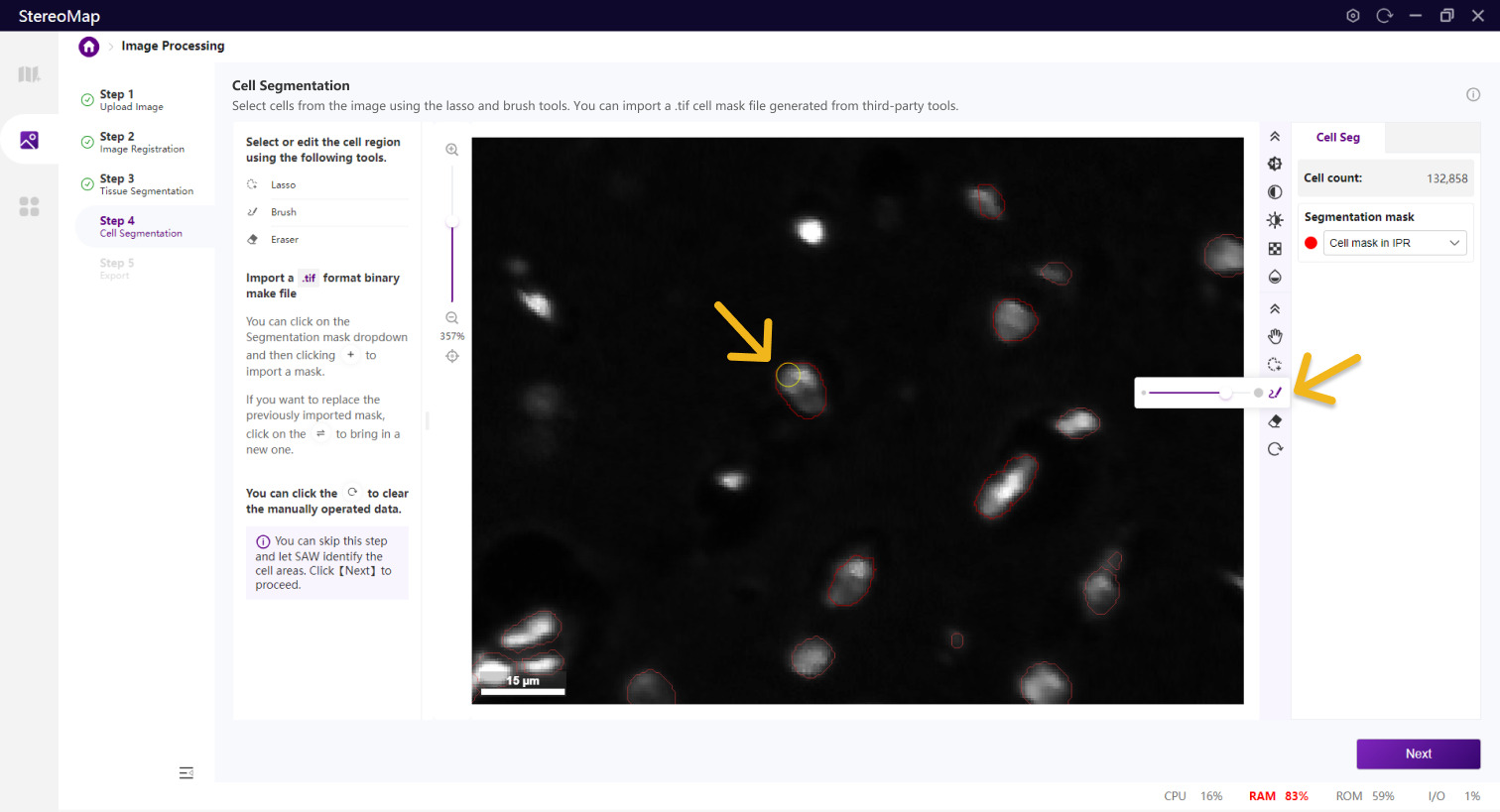
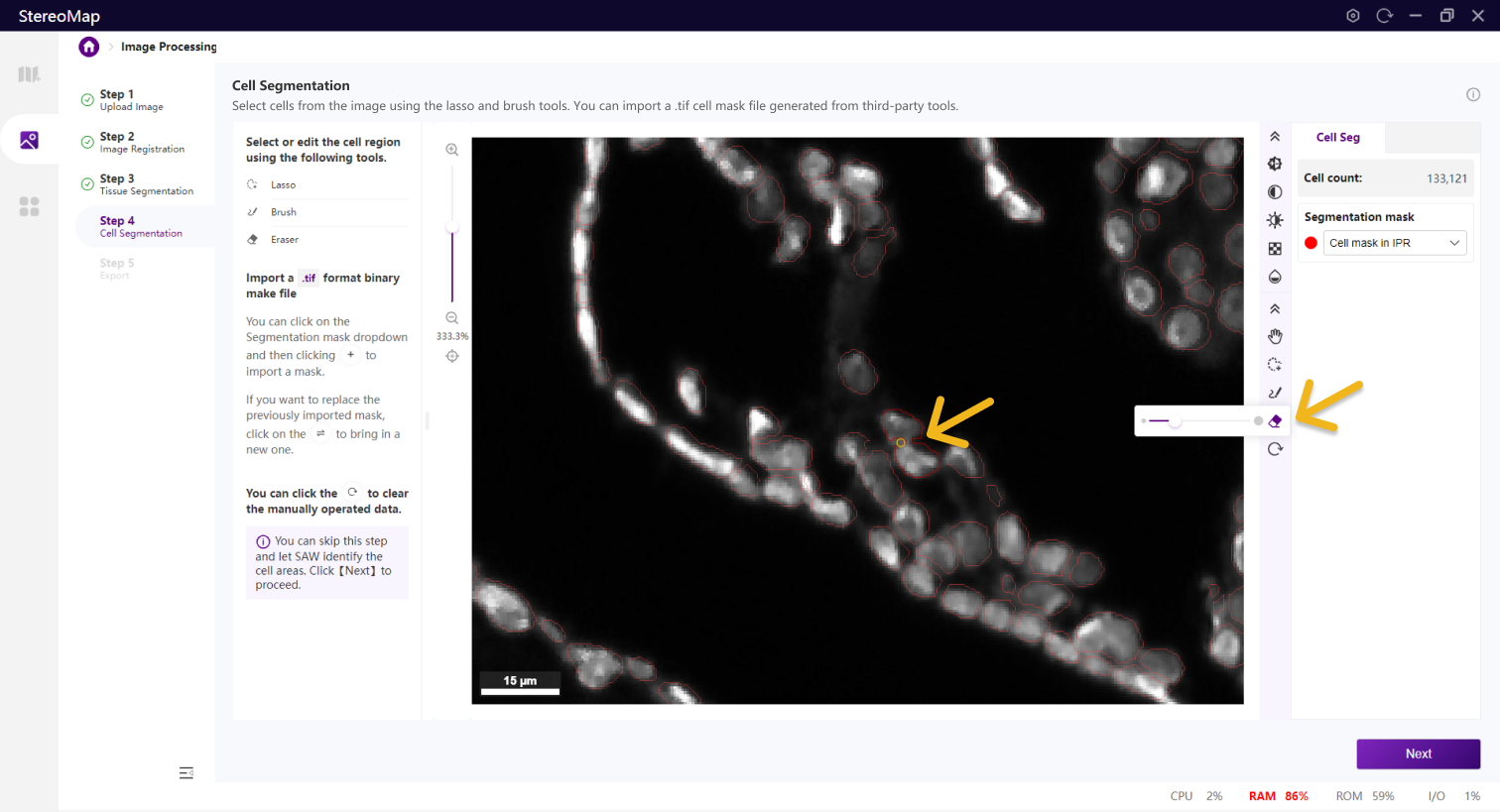
Use the **Lasso** <img src="/files/XneuB0sqcRQ9IrN1RIcK" alt="" data-size="original">, **Brush** <img src="/files/xupjaBYFS02SkFFUymMI" alt="" data-size="original"> , and **Eraser** <img src="/files/HJfFirxVfmaaZNFrJWYO" alt="" data-size="original"> tools to select or edit cells. **Lasso** is best for use in deselecting large areas such as background, while the **Brush** and **Eraser** tools are more suitable for smaller areas, such as marking cells or separating cell clusters.
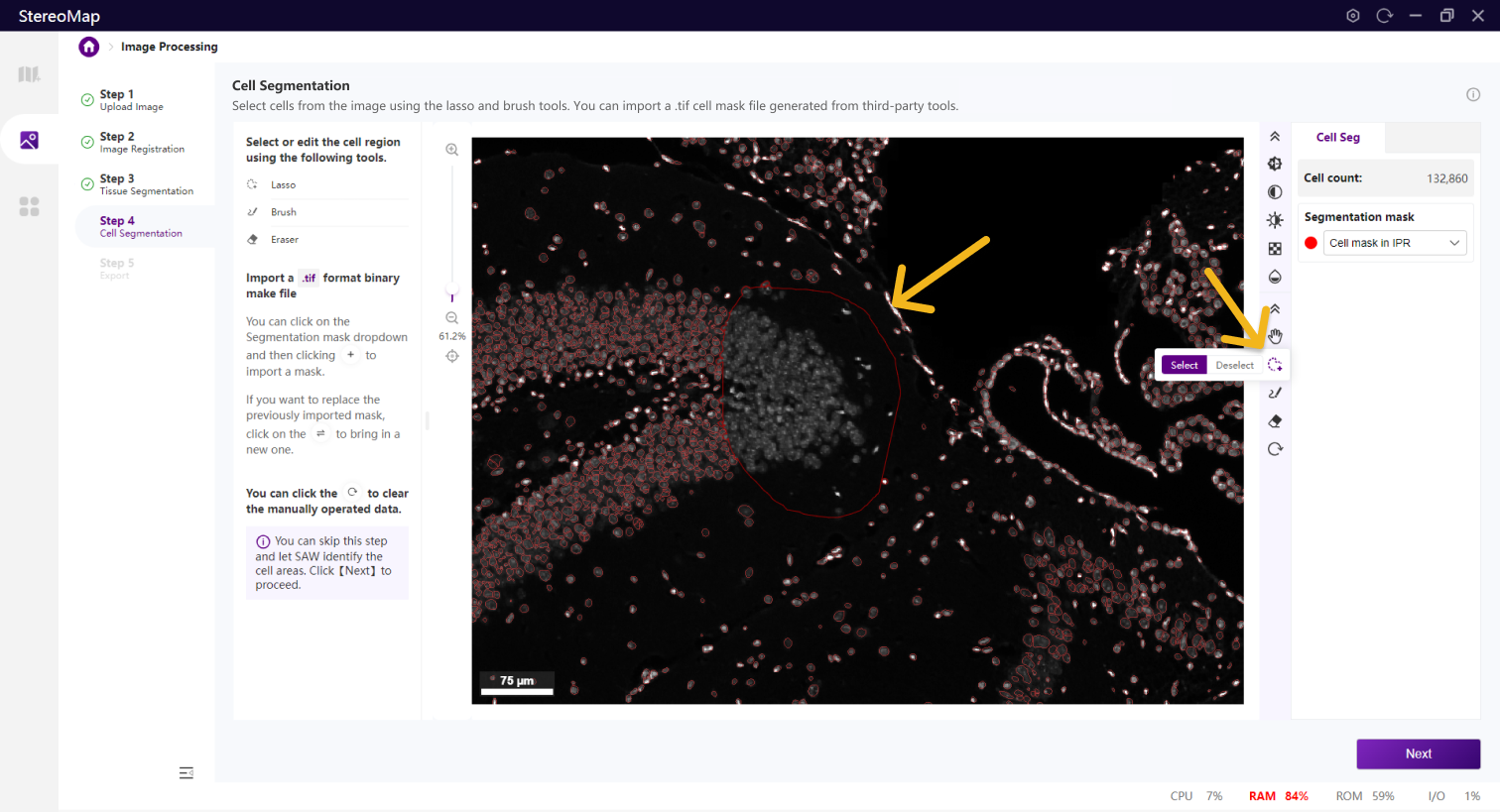
<div><figure><img src="/files/604XzJRrkOrBZmAGN1Cf" alt=""><figcaption><p>Lasso to select a cell</p></figcaption></figure> <figure><img src="/files/yIrZ9GxpJVfvfbC9f4ZM" alt=""><figcaption><p>Lasso to deselect some cells</p></figcaption></figure></div>

<div><figure><img src="/files/JgDKWpu57G5klYbH7OiU" alt=""><figcaption><p>Brush</p></figcaption></figure> <figure><img src="/files/4yL8XwY5o4SZPnVUAFsF" alt=""><figcaption><p>Eraser</p></figcaption></figure></div>

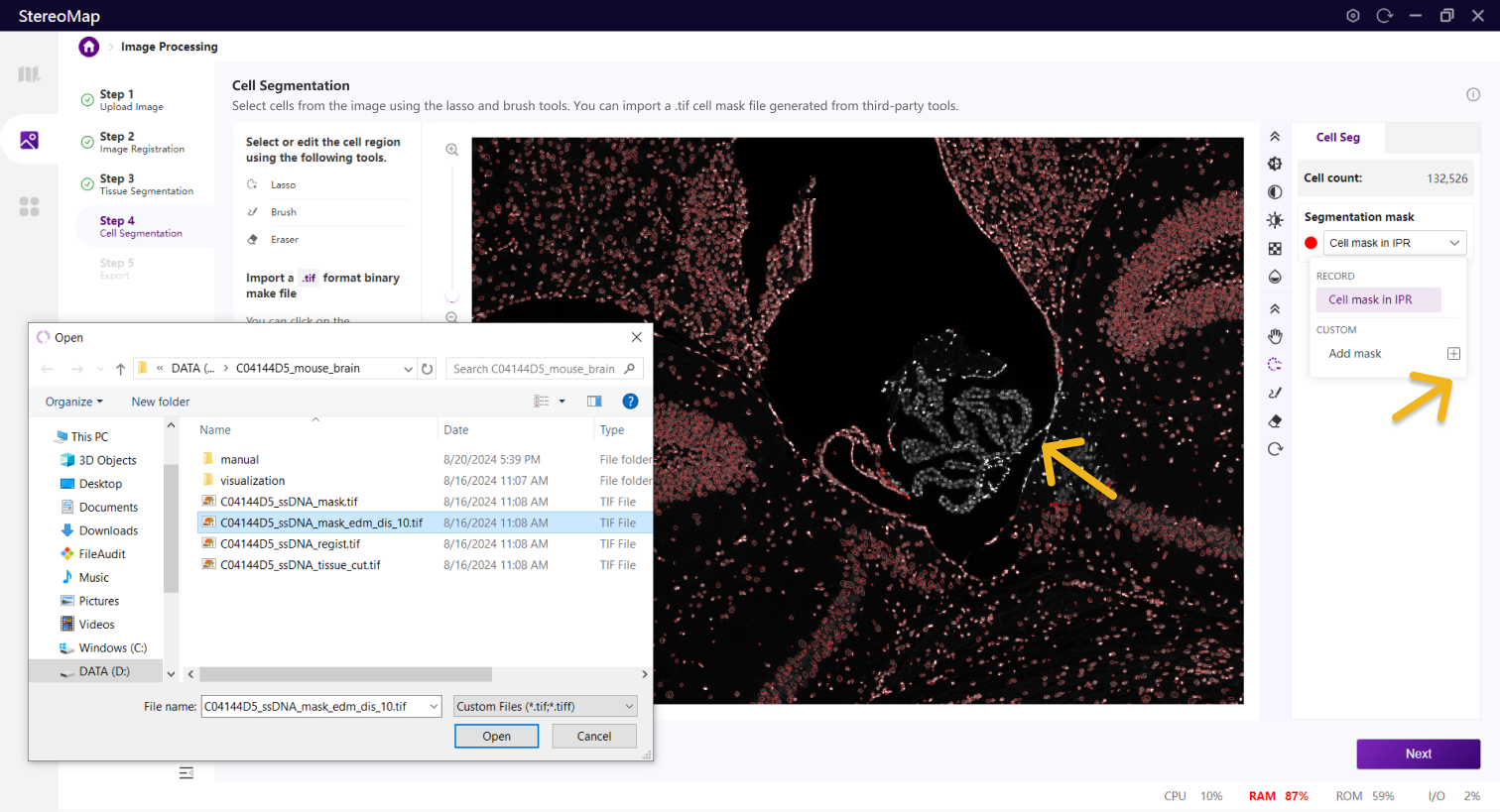
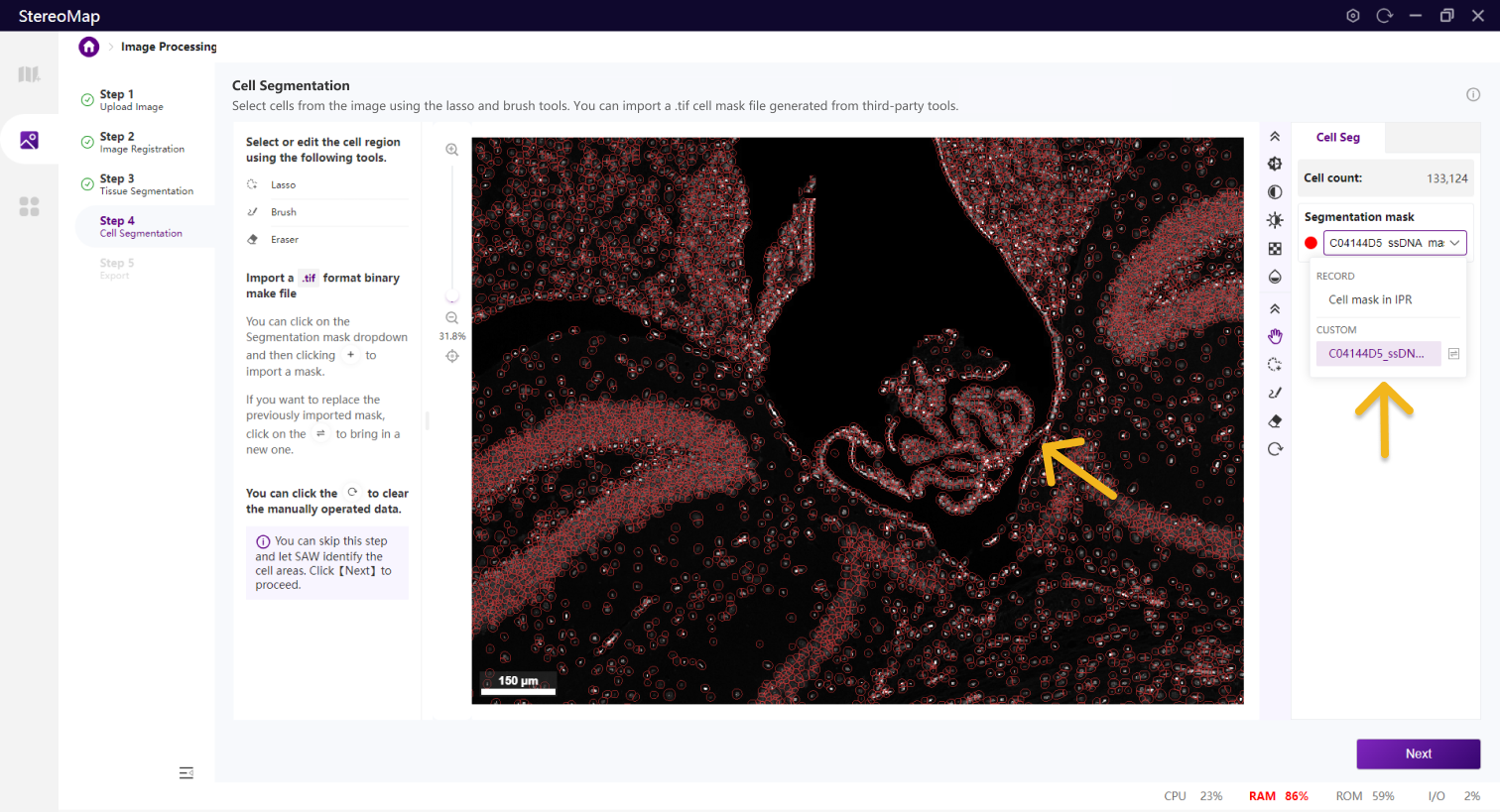
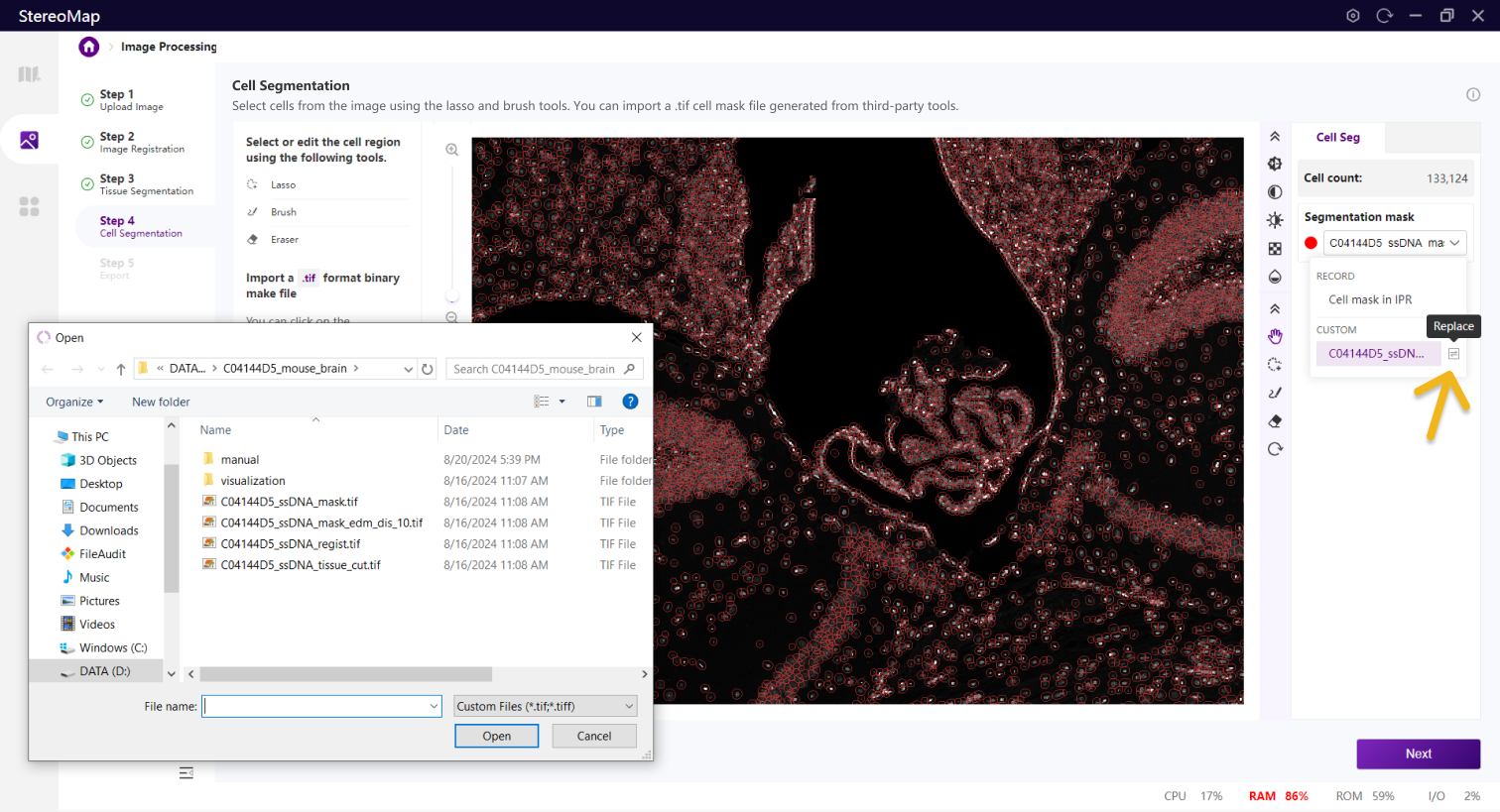
It is recommended to import a`.tif` format cell mask file created from the registered image by any third-party tools. You can import it by clicking on the **Segmentation mask** dropdown and then accessing your file system by clicking <img src="/files/bwJx0rgIN3S6O2VJY77e" alt="" data-size="original">. If the imported result is unsatisfactory, you can replace it by clicking <img src="/files/VfMxQKPVHatNLHpHiQPS" alt="" data-size="original"> to import a new mask.

<div><figure><img src="/files/CBA72a2fIqZvWne6R3hL" alt=""><figcaption><p>Import cell mask</p></figcaption></figure> <figure><img src="/files/b0MD0Yzz1YxOkBcA794s" alt=""><figcaption><p>Show the file name of the imported mask</p></figcaption></figure> <figure><img src="/files/eNIK1CsED303d7SvNsf4" alt=""><figcaption><p>Replace the mask</p></figcaption></figure></div>

## Step 5: Export

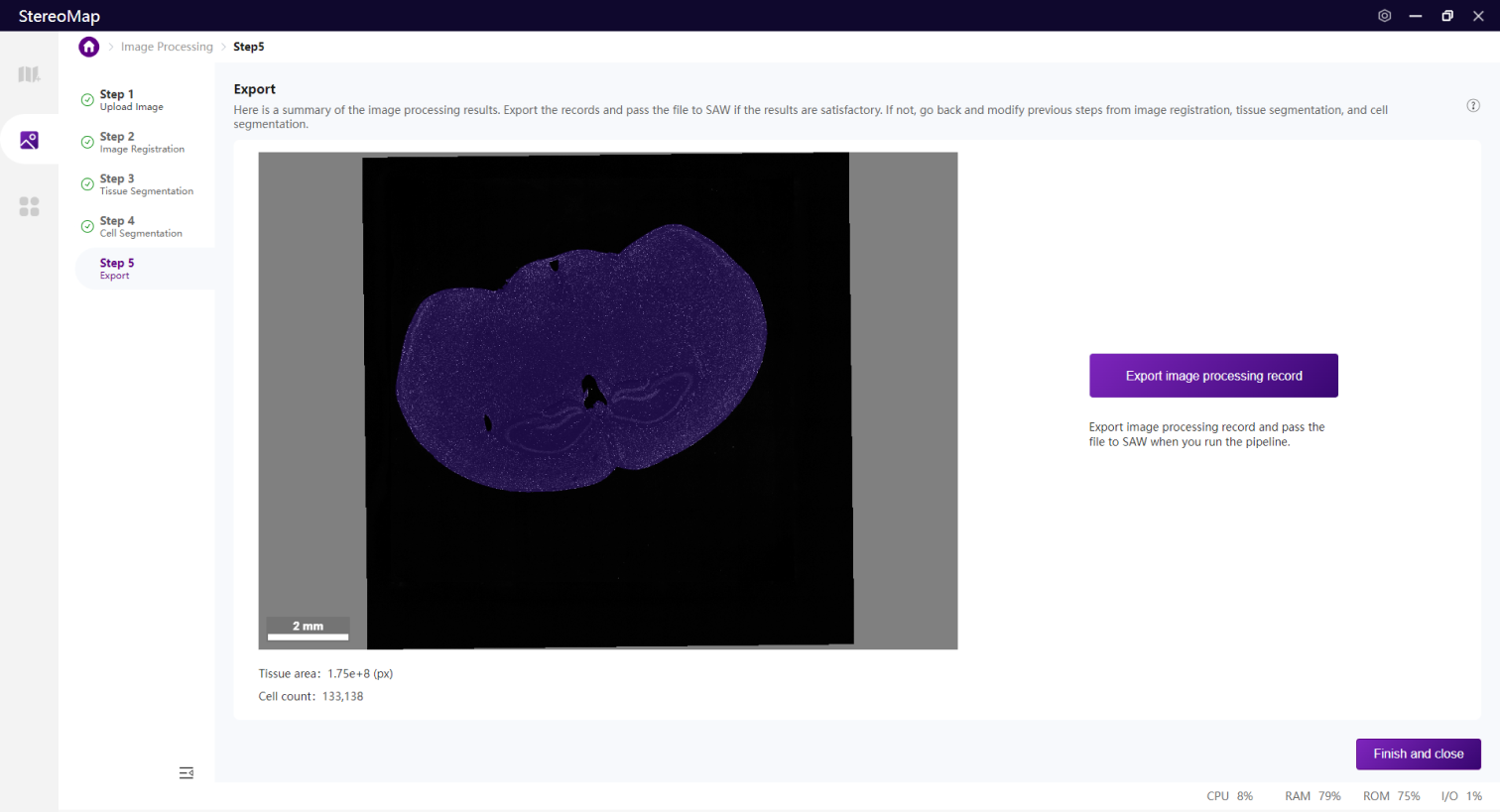
The final step is to export the results of image registration, tissue segmentation, and cell segmentation. Click **Export image processing record** to generate a `.tar.gz` file.

<figure><img src="/files/n1m8Vzex5lQAllWVjdSl" alt=""><figcaption></figcaption></figure>

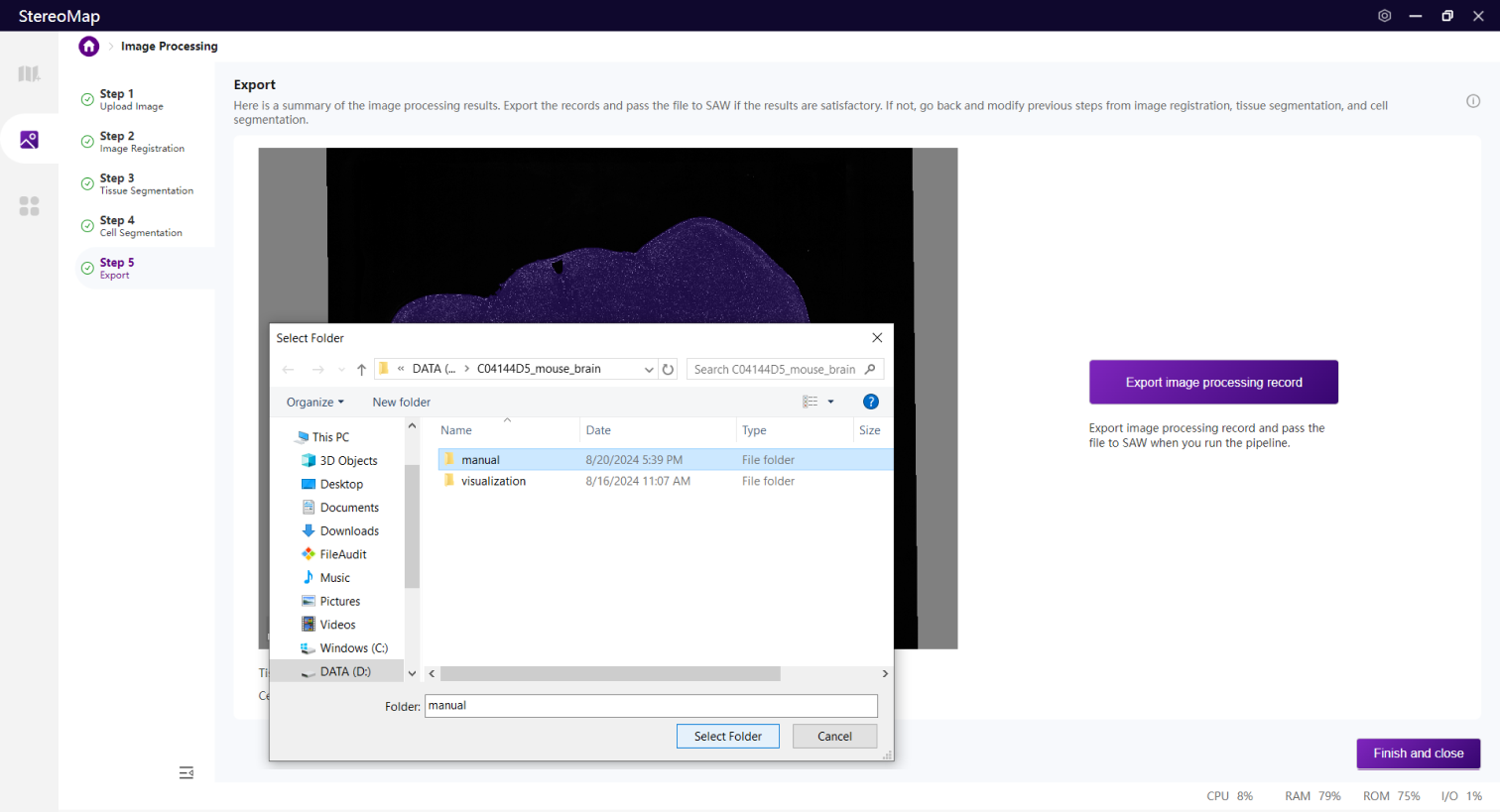
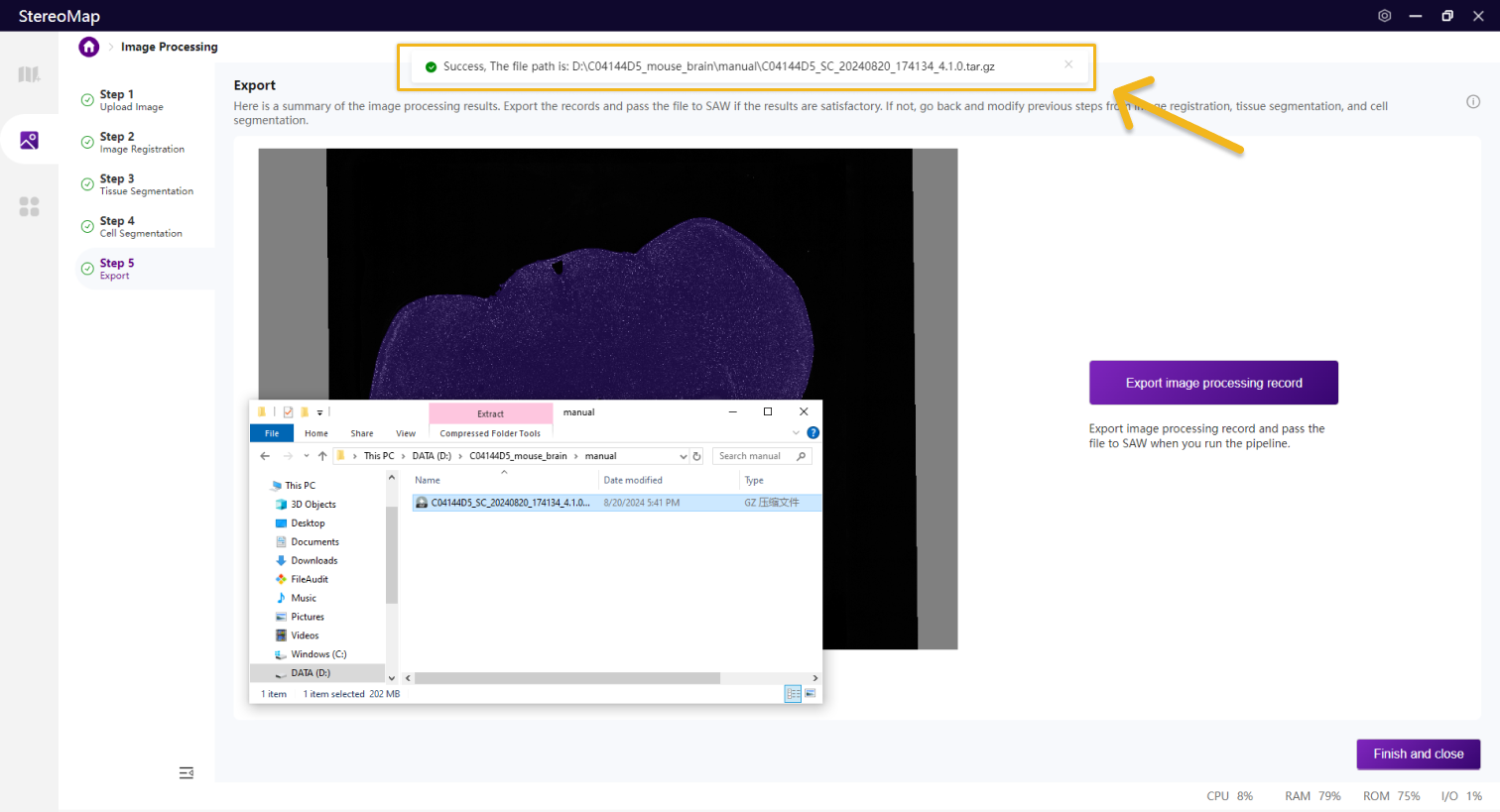
Click on the export will open your file system, and you will be allowed to select a saving path.

<div><figure><img src="/files/PtbnsTPErGZTGv2L8FpY" alt=""><figcaption></figcaption></figure> <figure><img src="/files/0ogEhD7JQNTVoRlPF6Y7" alt=""><figcaption></figcaption></figure></div>

If you have manually adjusted the image alignment with the matrix, you will also find a `*regist.tif` file in your output folder. Alternatively, this TIFF file can be located in the SAW output directory under the `/outs/` folder.

<figure><img src="/files/yluHt2UFH46gvh5GtbXE" alt=""><figcaption></figcaption></figure>

The `.tar.gz` file contains the original image and records of the manual process. This file will be used in SAW to analyze sequencing data and images together. The internal structure of the `.tar.gz` is fixed and modification of the structure or any of the files in it is not recommended.

The `*regist.tif` file is a registered image that has been cropped and resized to match the dimension of the feature expression matrix. It can be utilized in any third-party tool, and the resulting data can be re-imported to StereoMap.

## Pass the TAR.GZ to SAW Pipeline

There are two options for transferring the output of Image Processing to SAW.

One option is to use the `--image-tar` argument to feed the `.tar.gz` file into the `SAW count` pipeline. This will process the image together with the Stereo-seq FASTQ files and produce the HTML summary report.

```bash
cd /saw/runs

saw count \
    --id=<ID> \
    --sn=<SN> \
    --omics=<OMICS> \
    --kit-version=<TEXT> \
    --sequencing-type=<TEXT> \
    --chip-mask=/path/to/chip/mask \
    --organism=<organism> \
    --tissue=<tissue> \
    --fastqs=/path/to/fastq/folders \
    --reference=/path/to/reference/folder \
    --image-tar=/path/to/image/tar
```

Another choice is to use the `--realigned-image-tar` argument to input the `.tar.gz` file into the `SAW realign` pipeline. `SAW realign` will bypass the CID mapping and genome alignment steps, and re-generate aligned images, obtain the feature expression matrix at tissue and cell level, and produce an updated HTML report.

```bash
cd /saw/runs

saw realign \
    --id=<ID> \
    --sn=<SN> \
    --count-data=/path/to/previous/SAW/count/task/folder/id \
    --realigned-image-tar=/path/to/realigned/image/tar
```


---

# Agent Instructions: Querying This Documentation

If you need additional information that is not directly available in this page, you can query the documentation dynamically by asking a question.

Perform an HTTP GET request on the current page URL with the `ask` query parameter:

```
GET https://stereotoolss-organization.gitbook.io/stereomap-user-manual-v4.1/tutorials/navigation-for-image-processing/nuclei-staining-image.md?ask=<question>
```

The question should be specific, self-contained, and written in natural language.
The response will contain a direct answer to the question and relevant excerpts and sources from the documentation.

Use this mechanism when the answer is not explicitly present in the current page, you need clarification or additional context, or you want to retrieve related documentation sections.